Profile and avatar
For everyone. Display name, bio, photo, and product analytics opt-out.
Last updated About 2 months ago
For everyone.
Your profile is per workspace — the name, bio, and photo teammates see in this organization. Other workspaces you belong to keep their own profile details.
Open Profile Settings
- Click Settings in the sidebar.
- Choose Profile Settings (the default tab).
Display name and bio
Update Display name and Bio, then click Save profile. The bio is limited to 280 characters.
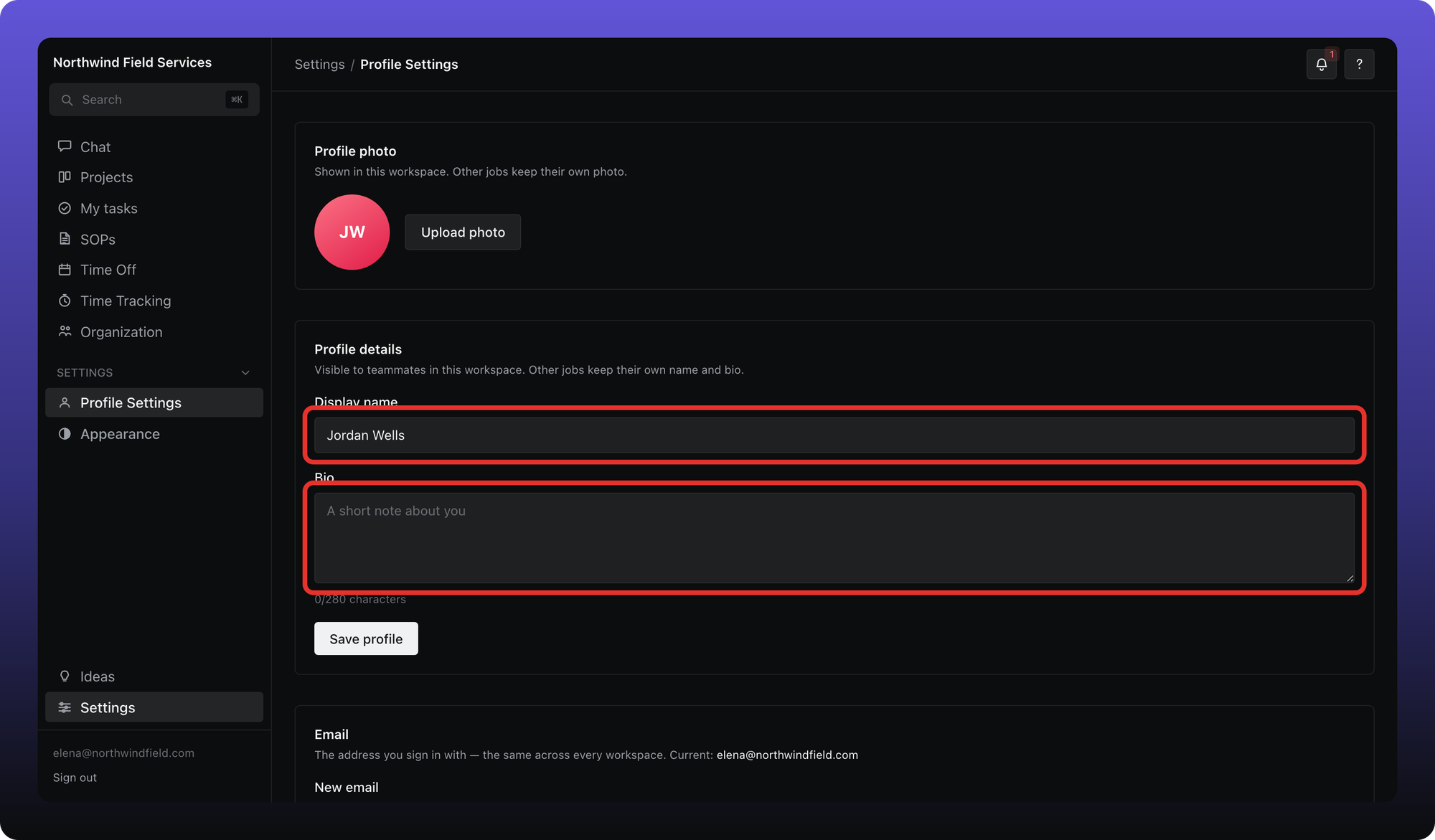
Profile photo
Under Profile photo, click Upload photo. You can pick an image up to 8 MB; after you crop it in the dialog, Aiome stores a version up to 512 KB. Click Remove to clear the photo for this workspace only.
Product analytics
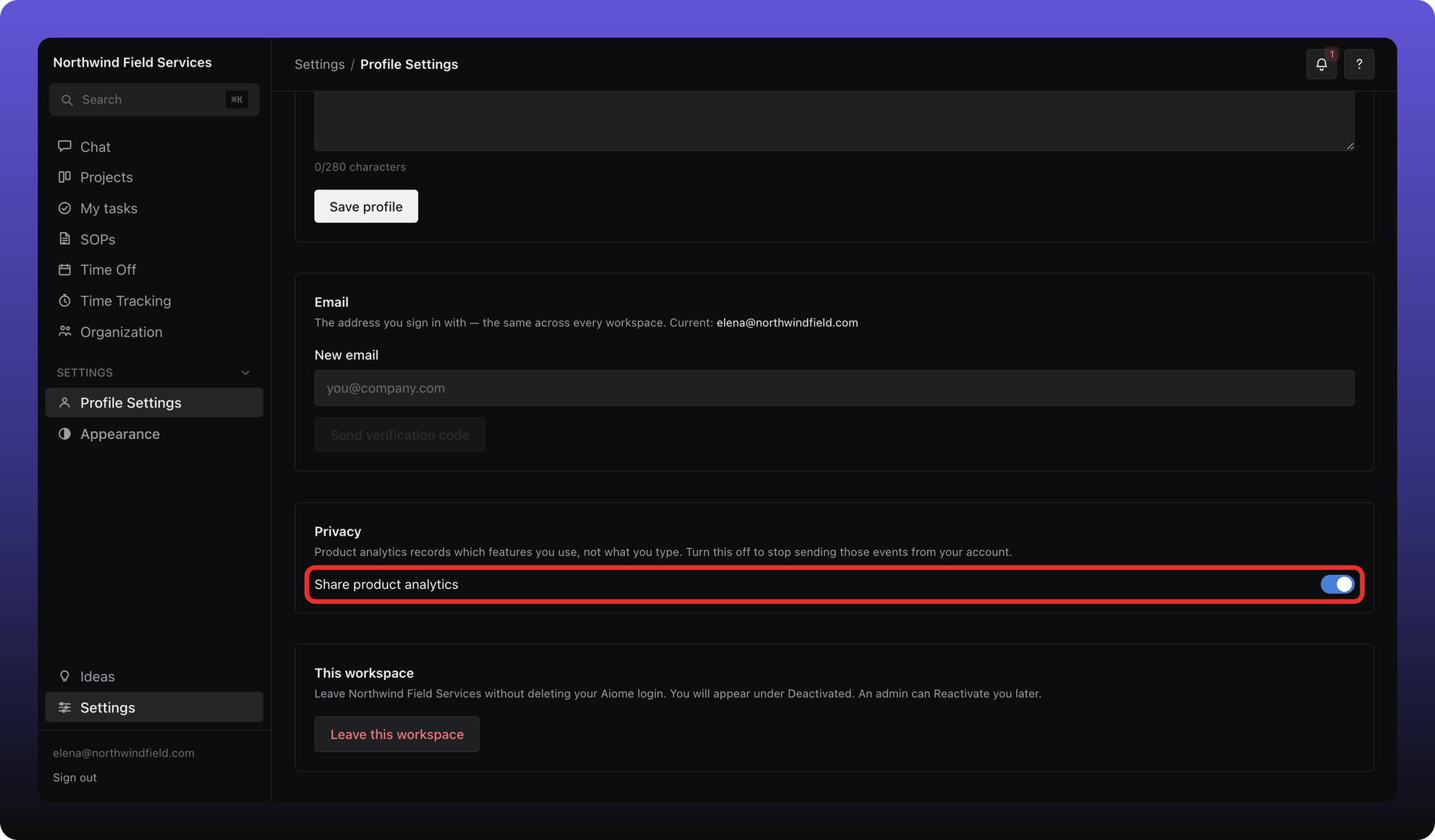
Scroll to Privacy on the same tab. Share product analytics controls whether Aiome records which features you use — not what you type in messages or forms. Turn it off to stop sending those events from your account.
Was this helpful?
Still need help? Ask the team