Approve or deny a request
For policy approvers. Review incoming requests, approve, deny with a reason, or let the requester cancel.
Last updated About 2 months ago
Business plan only. Free workspaces do not show Time Off in the sidebar.
Policy approvers · Business plan
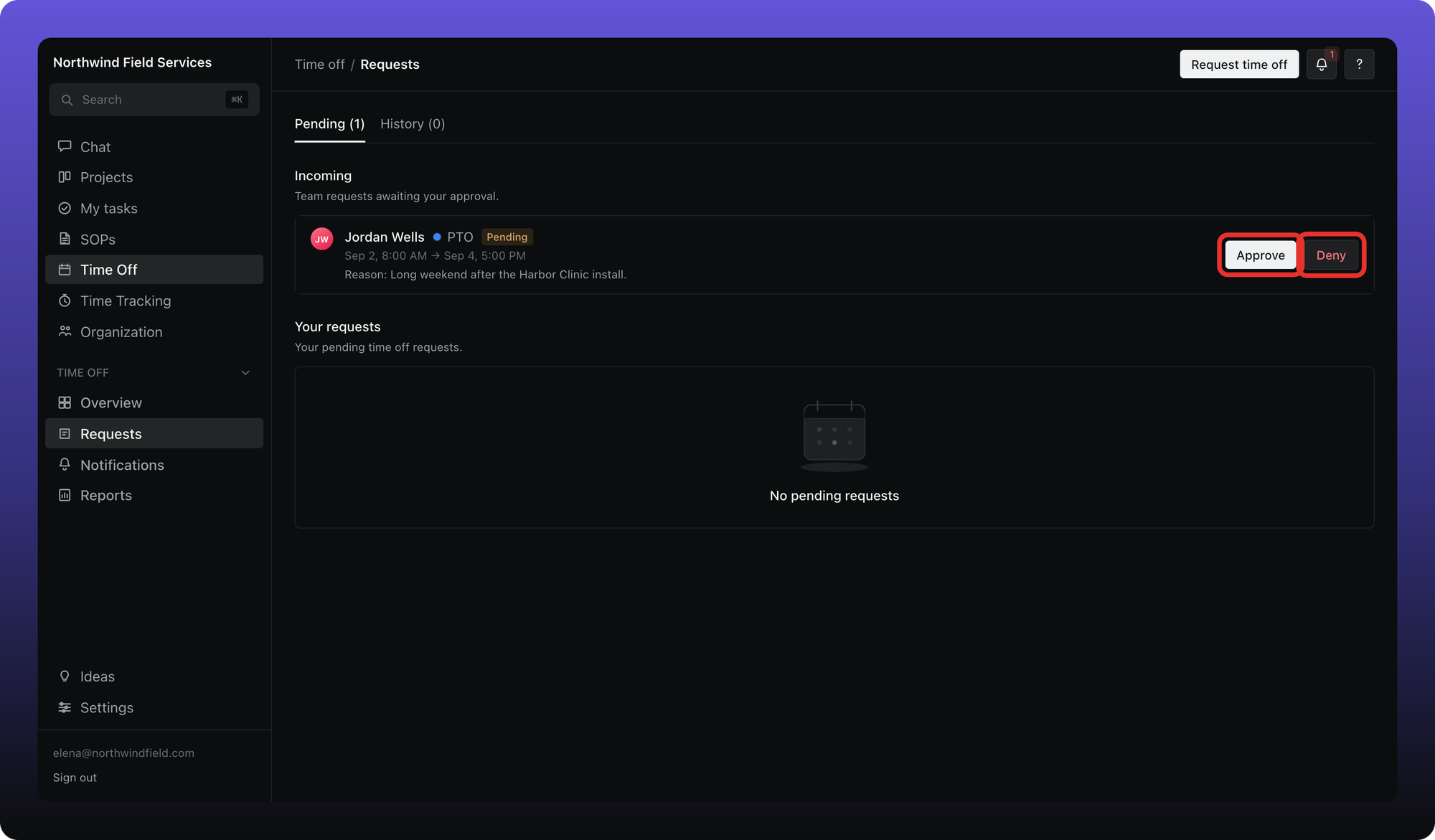
If a leave policy names you as an approver — usually your reports-to manager, specific people, or holders of selected org roles — pending team requests appear under Time Off → Requests → Incoming.
Approvers come from the policy, not from the app-wide Manager role alone. A manager who is not on the approval chain for that leave type will not see the request.
Open Requests. The Incoming section lists team requests waiting on you.
Click Approve to approve immediately.
Click Deny, enter a denial reason (required), and confirm.
The requester can Cancel while a request is still pending. The workspace owner can approve or deny any request even when not named on the policy.
After a decision, the request moves to History for everyone who was involved.
Was this helpful?
Still need help? Ask the team