Deactivate, reactivate, and leaving
For managers and admins to deactivate; everyone can leave (with exceptions).
Last updated About 2 months ago
For managers and admins to deactivate or reactivate others. Any member can leave a workspace themselves — unless they are the owner or the last admin.
Deactivate a teammate
Deactivating removes access immediately but keeps their history — messages, created tasks, and SOP progress stay in the workspace.
- Click Organization, then Members.
- Open the row menu (⋯) for an active member.
- Click Deactivate and confirm.
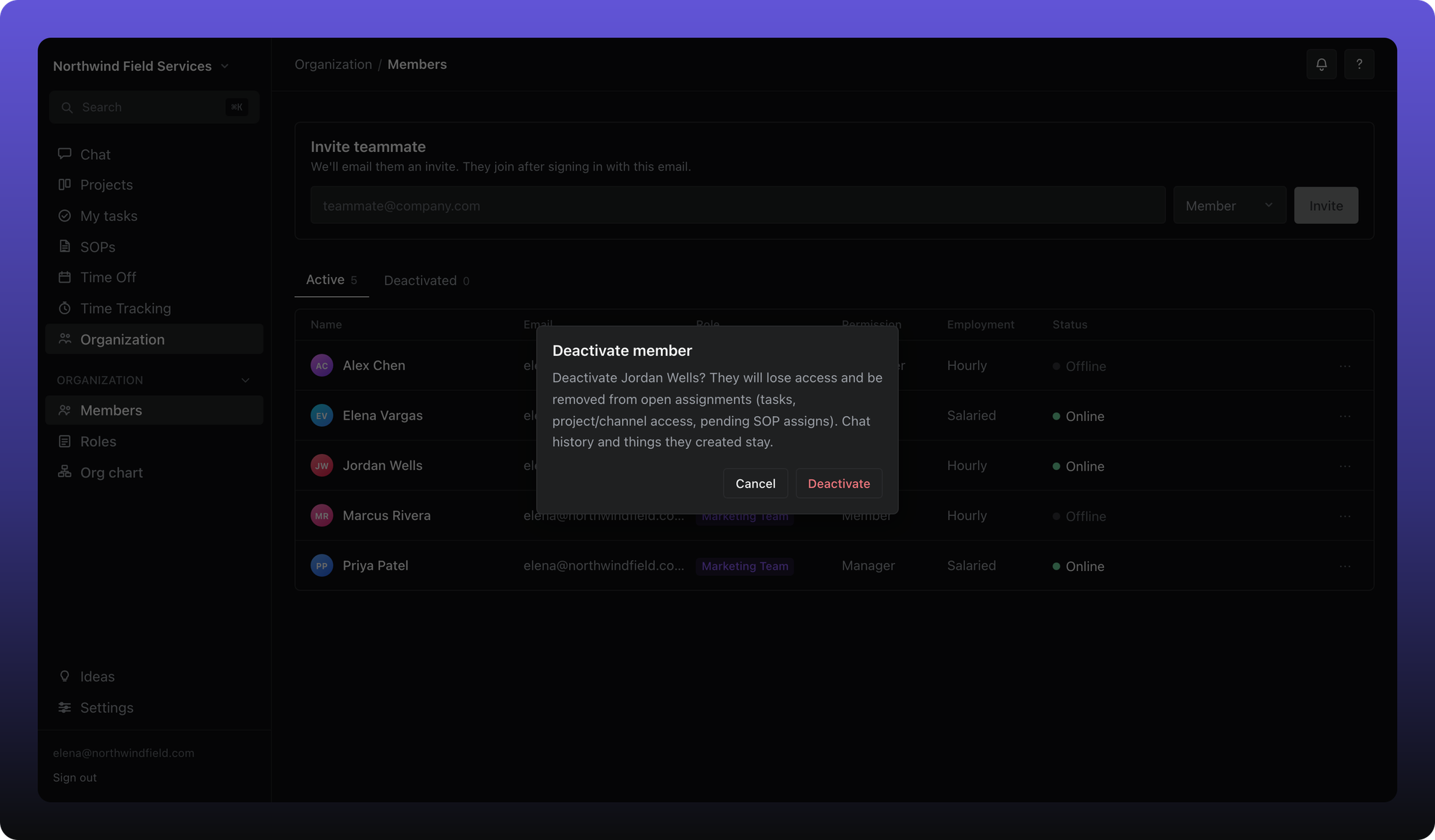
They are removed from open assignments (tasks, channel and project access, pending SOP assigns). You cannot deactivate the owner or the last active admin.
Reactivate
Click the Deactivated tab to see former members. Open their menu and click Reactivate.
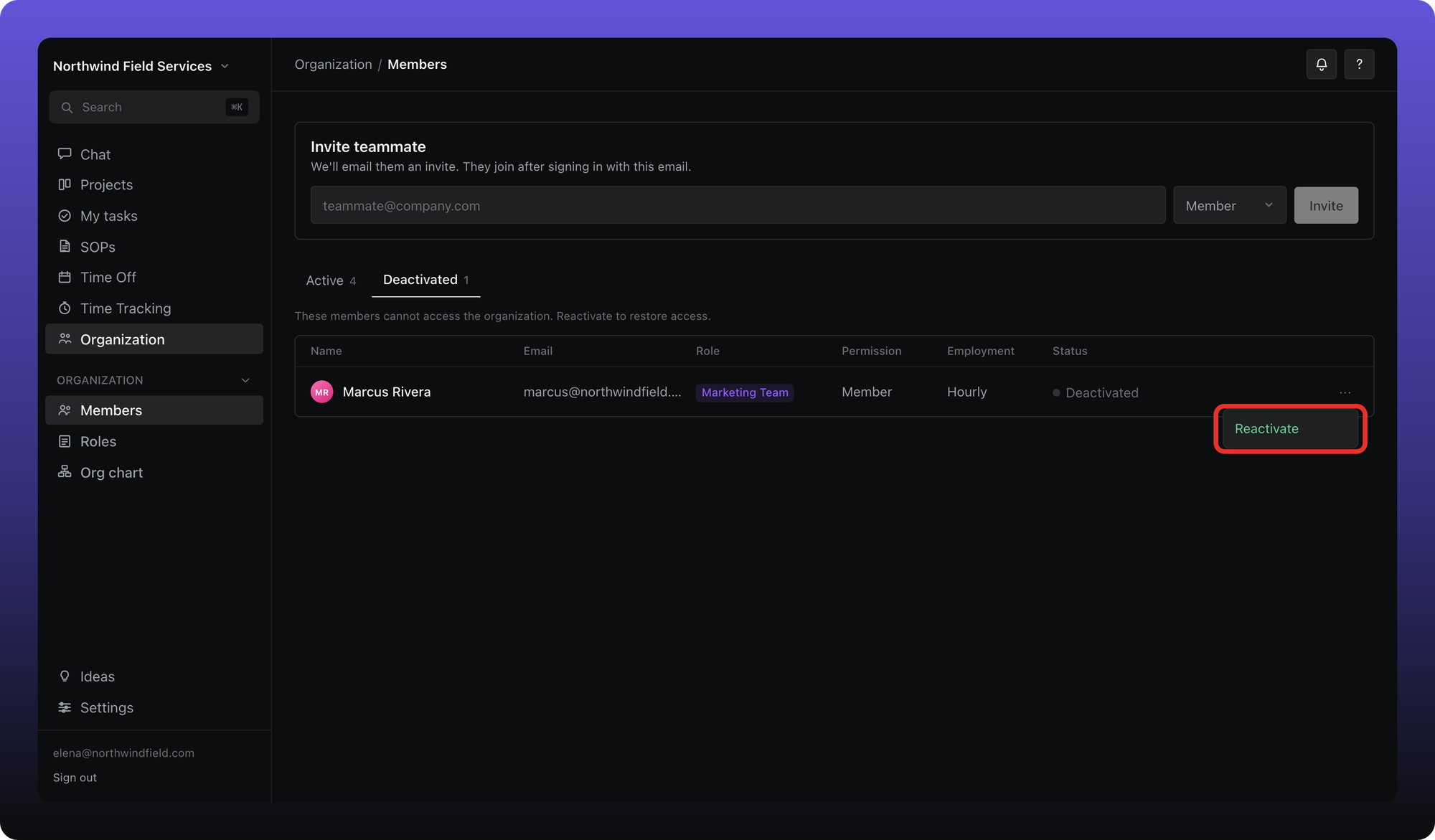
On Free, reactivating at the three-seat limit opens a replace dialog — keep current seats, swap someone out, or upgrade to Business.
Leave a workspace yourself
Leaving deactivates you in that workspace. It does not delete your Aiome login or any other workspace, and it does not delete org data.
- Click Settings, then Profile Settings.
- Scroll to Leave this workspace and click it.
- Confirm with a verification code sent to your email.
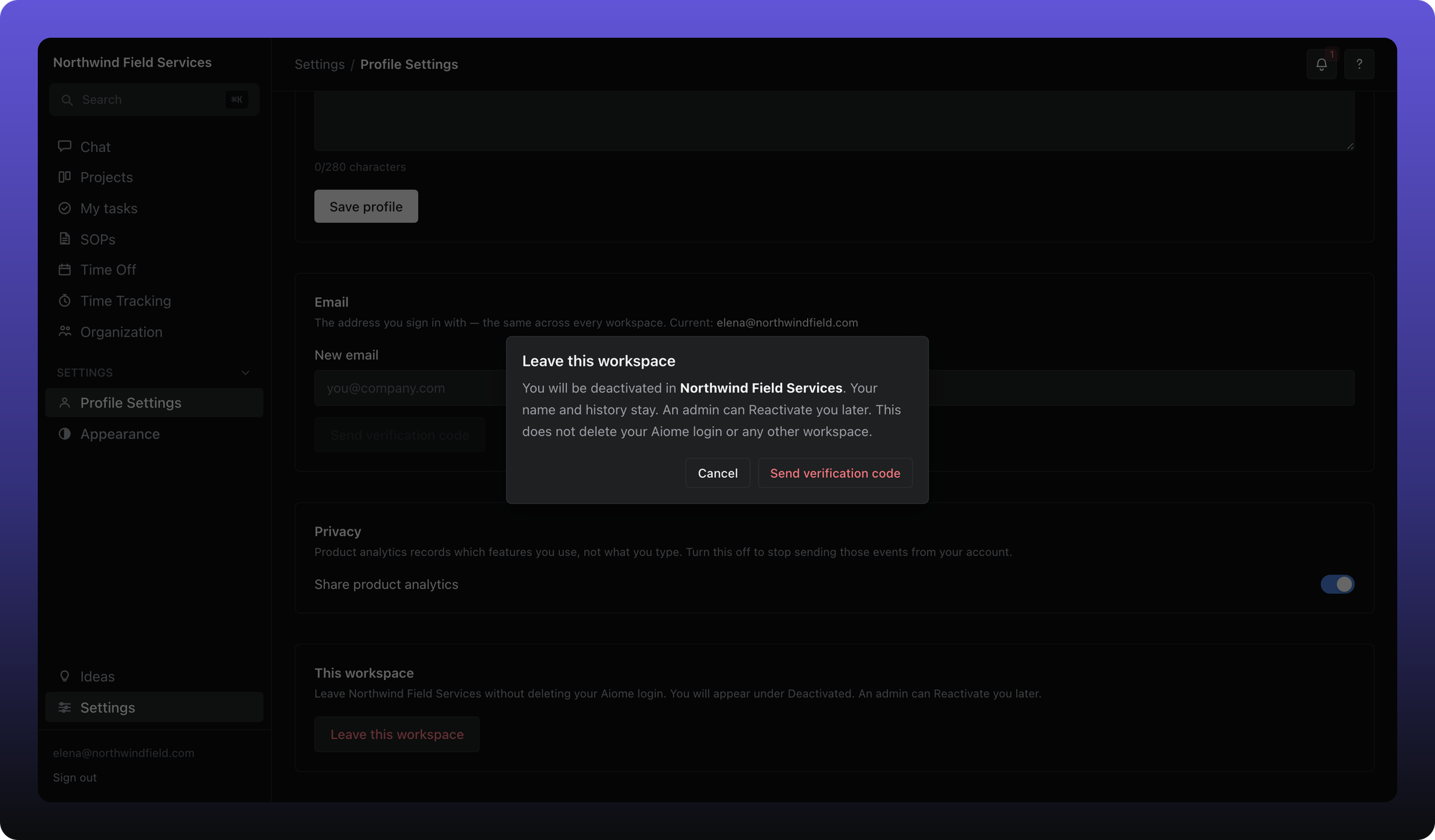
Owner and last admin. The organization owner must transfer ownership or delete the organization before leaving. The last remaining admin must promote another admin first.
See Leave a workspace in Your account for the same steps from Profile Settings.
Was this helpful?
Still need help? Ask the team