Find your way around
What the sidebar, the top bar, and each section of Aiome are for.
Last updated About 1 month ago
For everyone. What each part of the screen does.
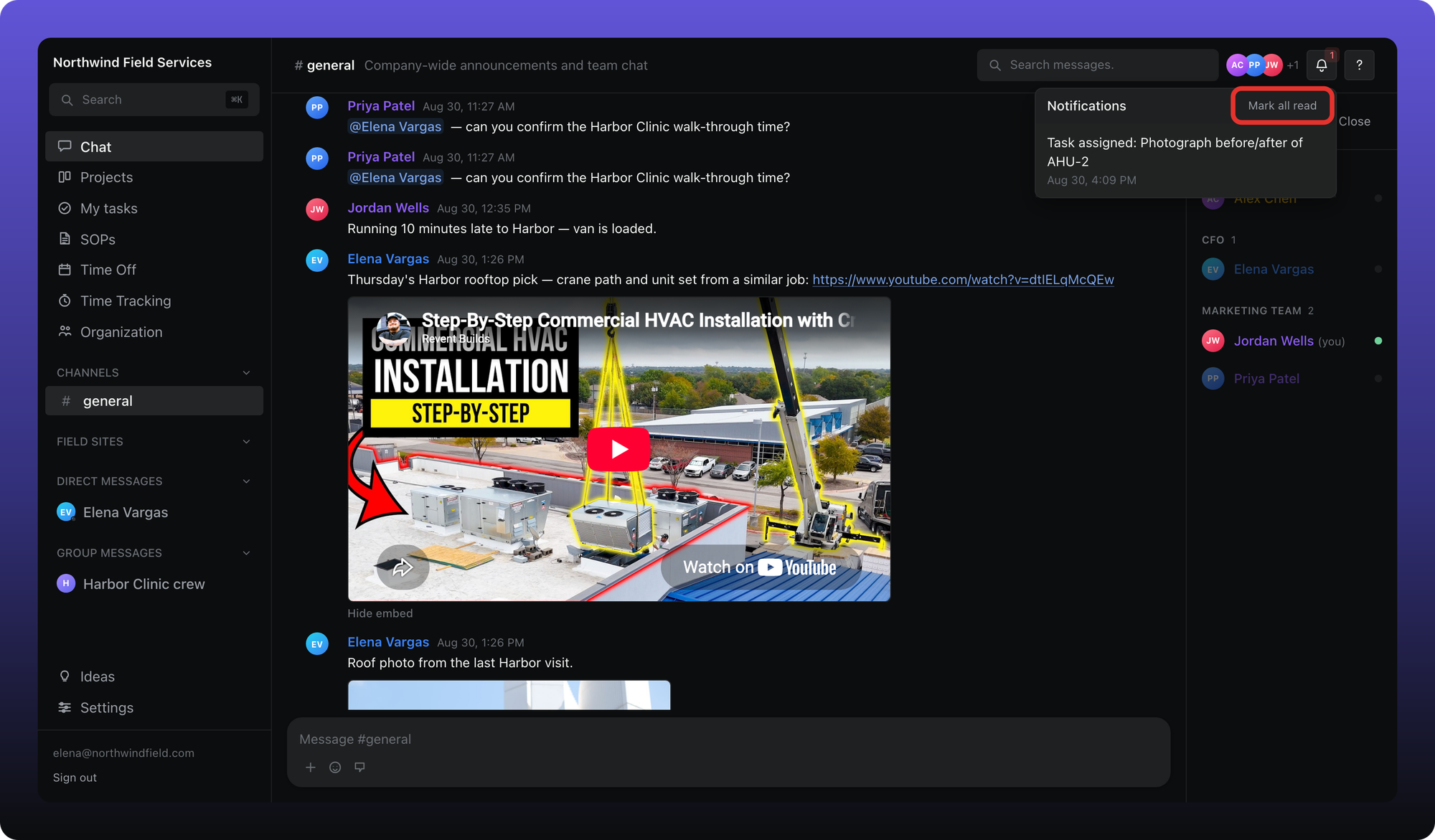
Aiome is one screen: a sidebar on the left for moving between parts of the app, and everything else on the right.
The left sidebar
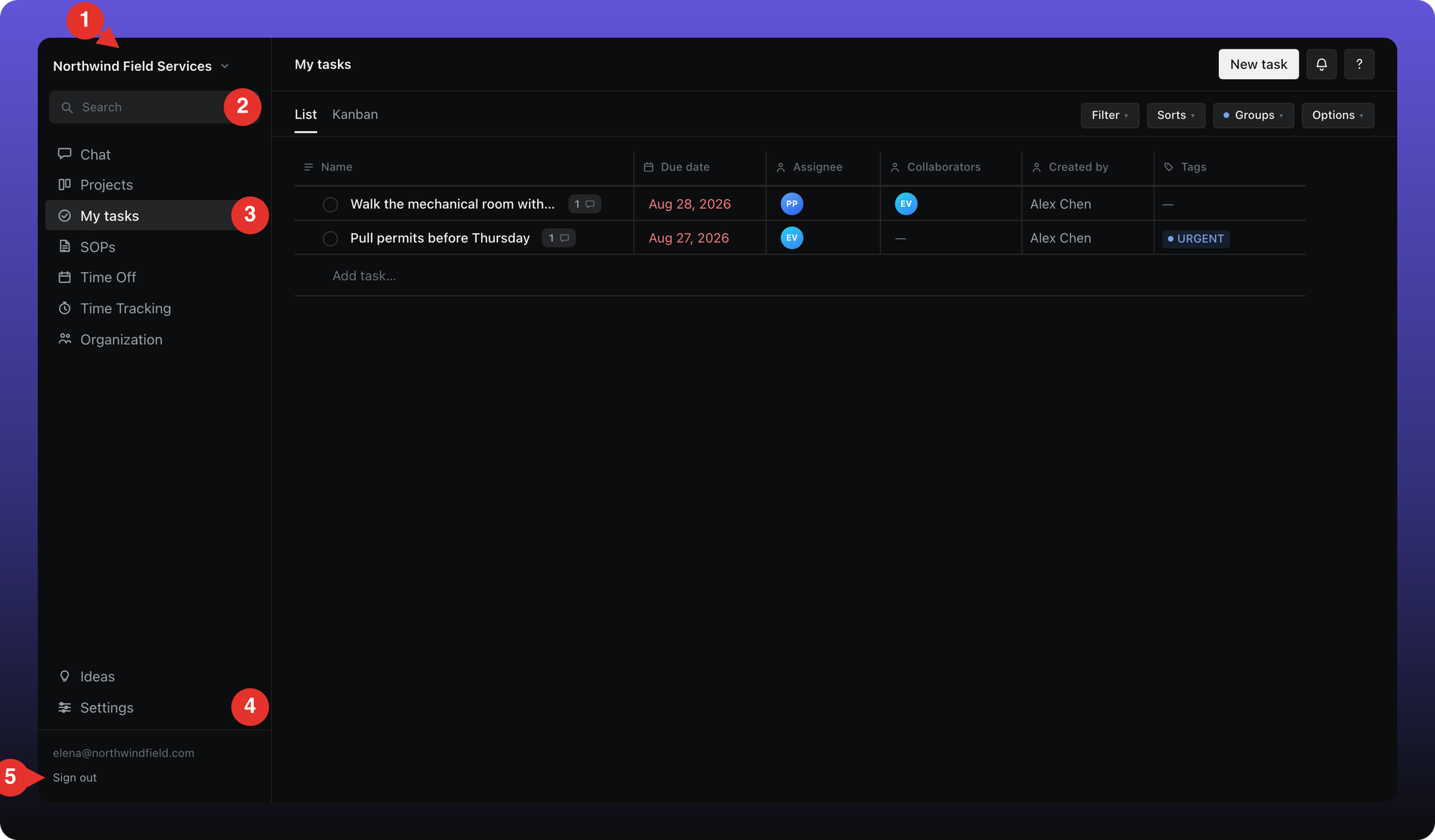
From top to bottom:
- Your workspace name. If you belong to more than one workspace, or have an invitation waiting, a small arrow appears beside it and the name becomes a menu.
- Search. Finds messages, tasks, and SOPs. The shortcut is shown on the button.
- The sections — Chat, Projects, My tasks, SOPs, Time Off, Time Tracking, and Organization. A number beside a section means unread items.
- Ideas and Settings at the bottom. Ideas opens our public suggestion board in a new tab; Settings stays in the app.
- Your email address and Sign out in the footer.
The workspace menu
Click the workspace name and the menu lists every workspace your email belongs to, with the one you are in highlighted. Any invitation waiting for you appears here too.
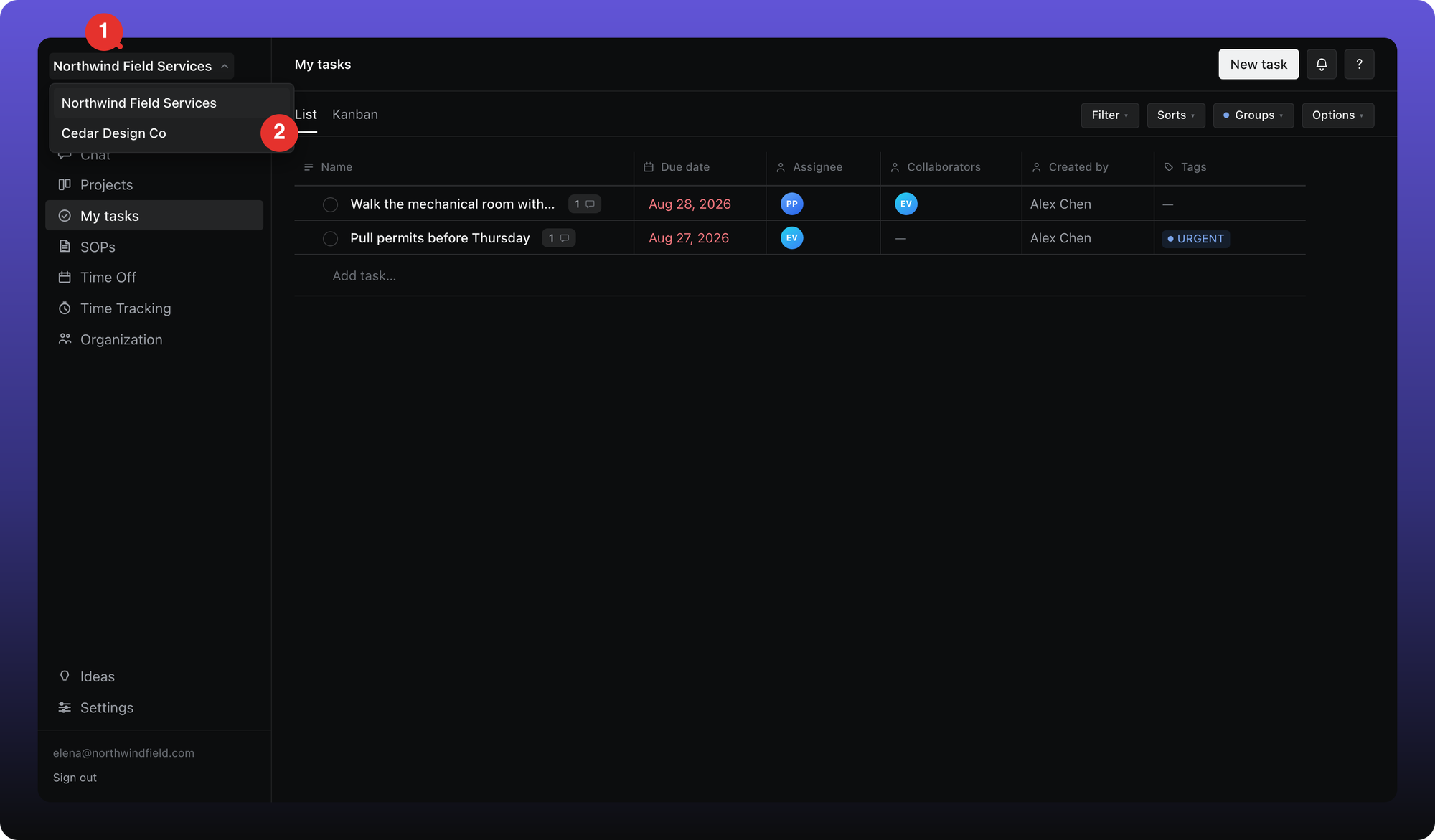
- The workspace name, with the arrow that opens the menu.
- The other workspace. Click it to switch.
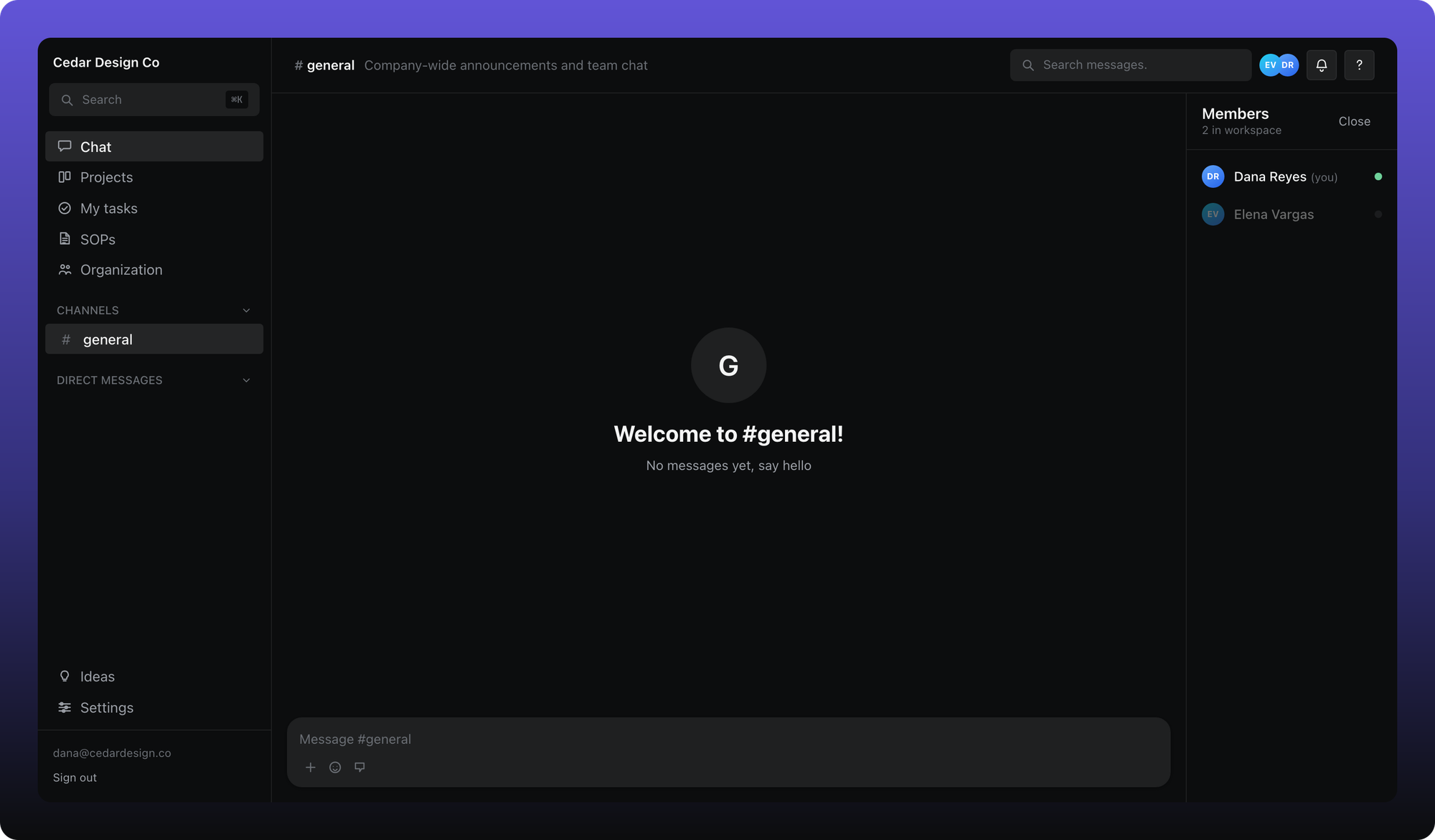
On the Free plan the list is shorter
Time Off and Time Tracking are not in the sidebar on Free. They are not hidden by a permission — they come with Business.
The top bar
The left of the top bar shows where you are — for example the project or channel you have open. On the right are two buttons.
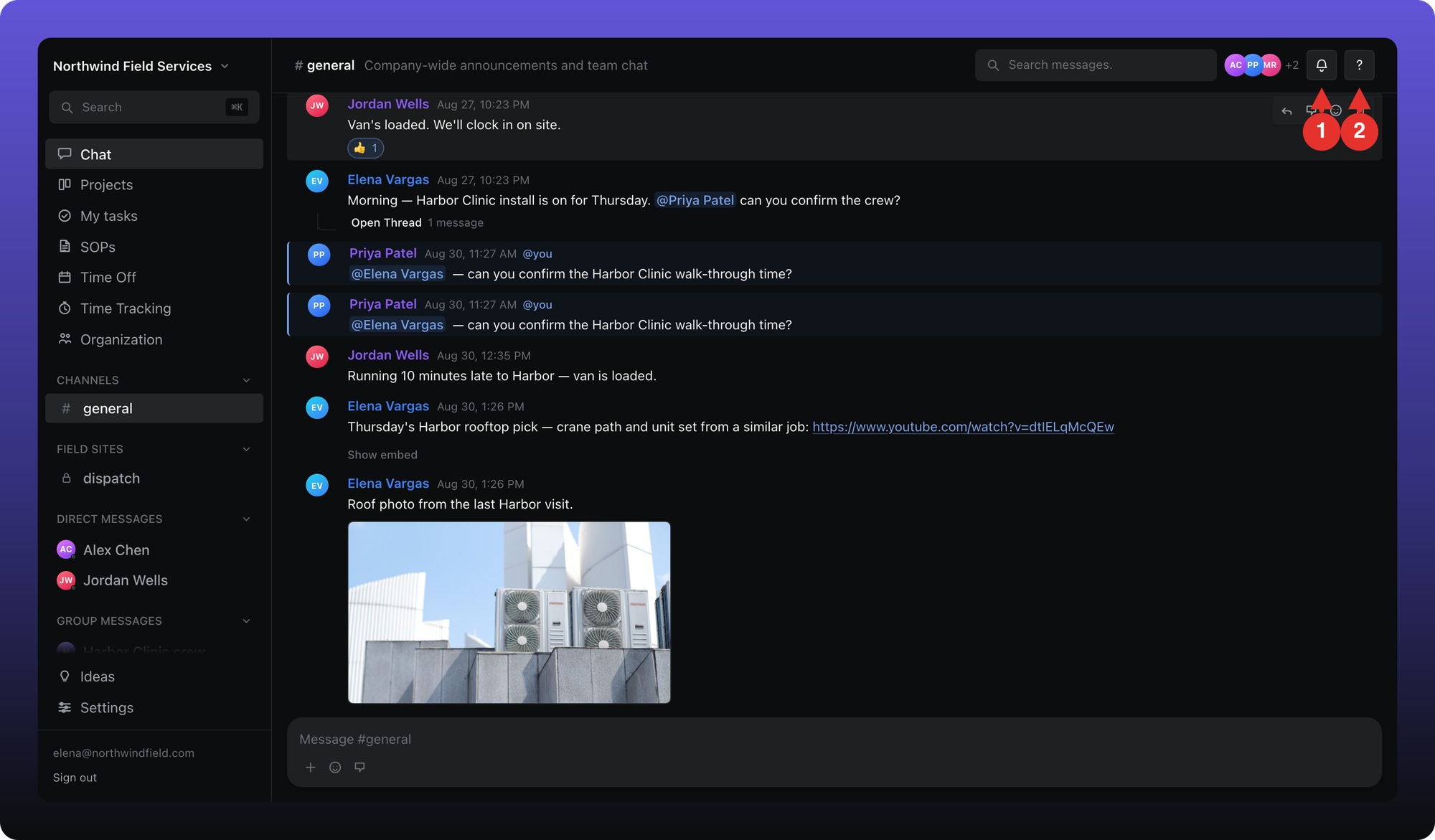
- Notifications (the bell). Mentions, direct messages, thread replies, tasks and SOPs assigned to you, things falling due, and time-off requests waiting on you. A red count shows how many are unread; Mark all read clears them.
- Help Center (the question mark). Opens this knowledge base in a new tab.
What each section is for
Aiome remembers where you were
Close the tab in the middle of a project and you come back to that project, not to the top of the app. Because of this, the web address stays the same as you move around — you cannot bookmark a particular section or send someone a link to it.
Was this helpful?
Still need help? Ask the team