Direct messages and group chats
For everyone. Start a DM or group, hide one, rename or leave a group.
Last updated About 2 months ago
For everyone.
Direct messages are one-to-one. Group chats are for more than two people. Both live under the left of Chat, below channels.
Start a conversation
Right-click the empty part of the Chat sidebar, or the DIRECT MESSAGES heading.
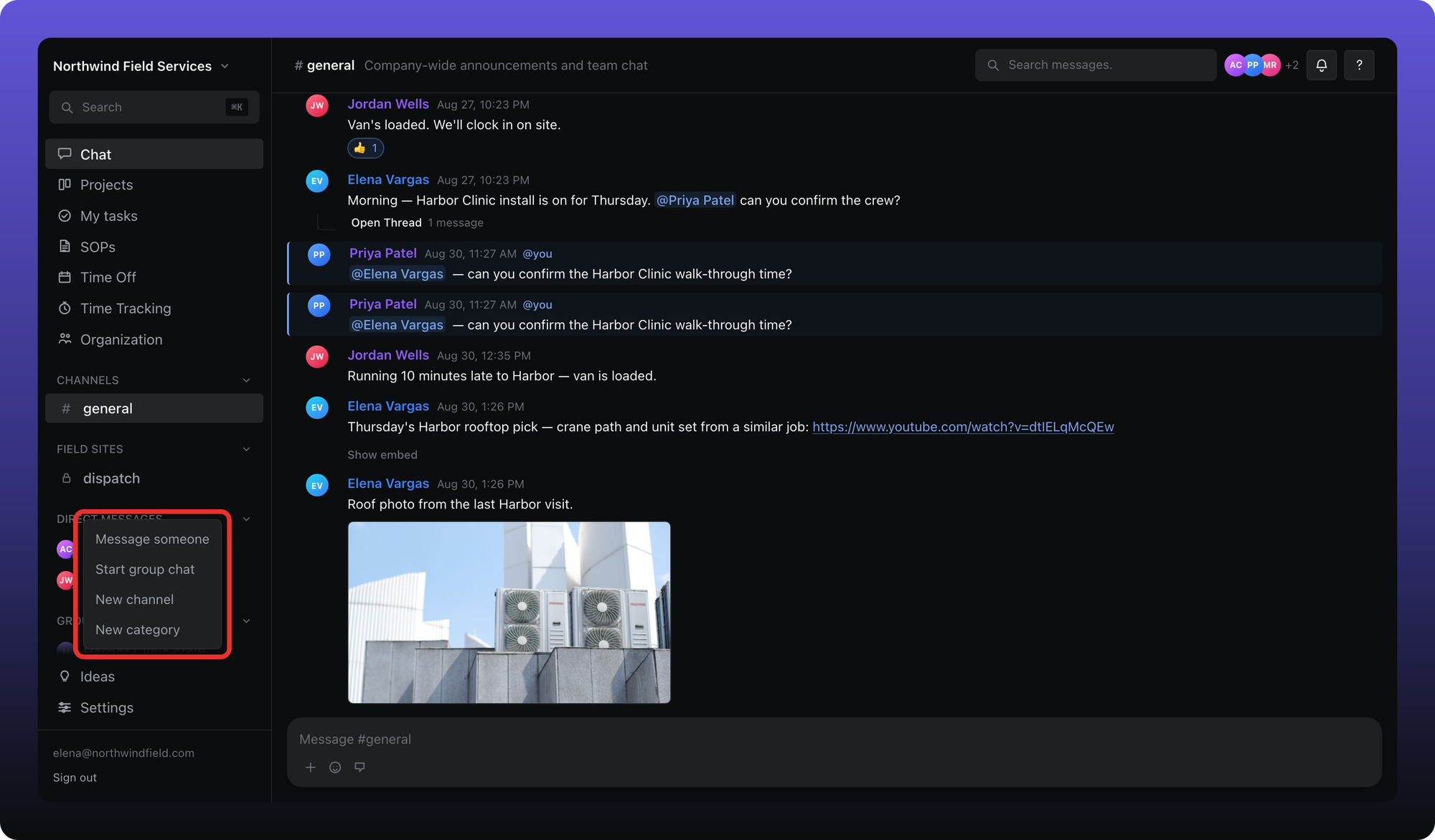
The outlined menu is what managers and admins see. Members see Message someone and Start group chat only — creating channels is in Create and organize channels.
Message someone
Click Message someone. Search or pick a person.
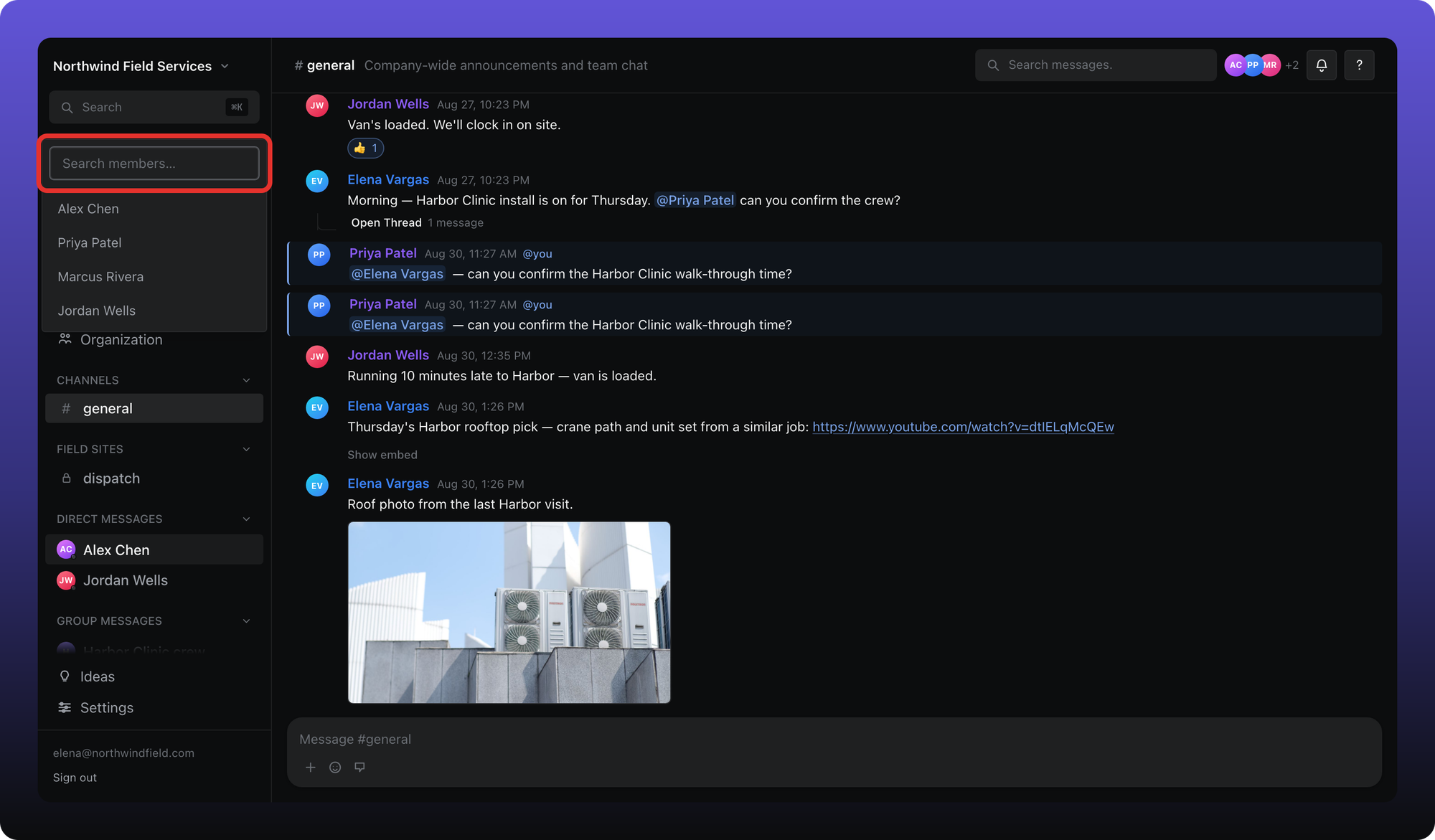
The outlined field is Search members…. Click a name to open the conversation.
Hide a direct message
Right-click a person under DIRECT MESSAGES and choose Delete direct message.
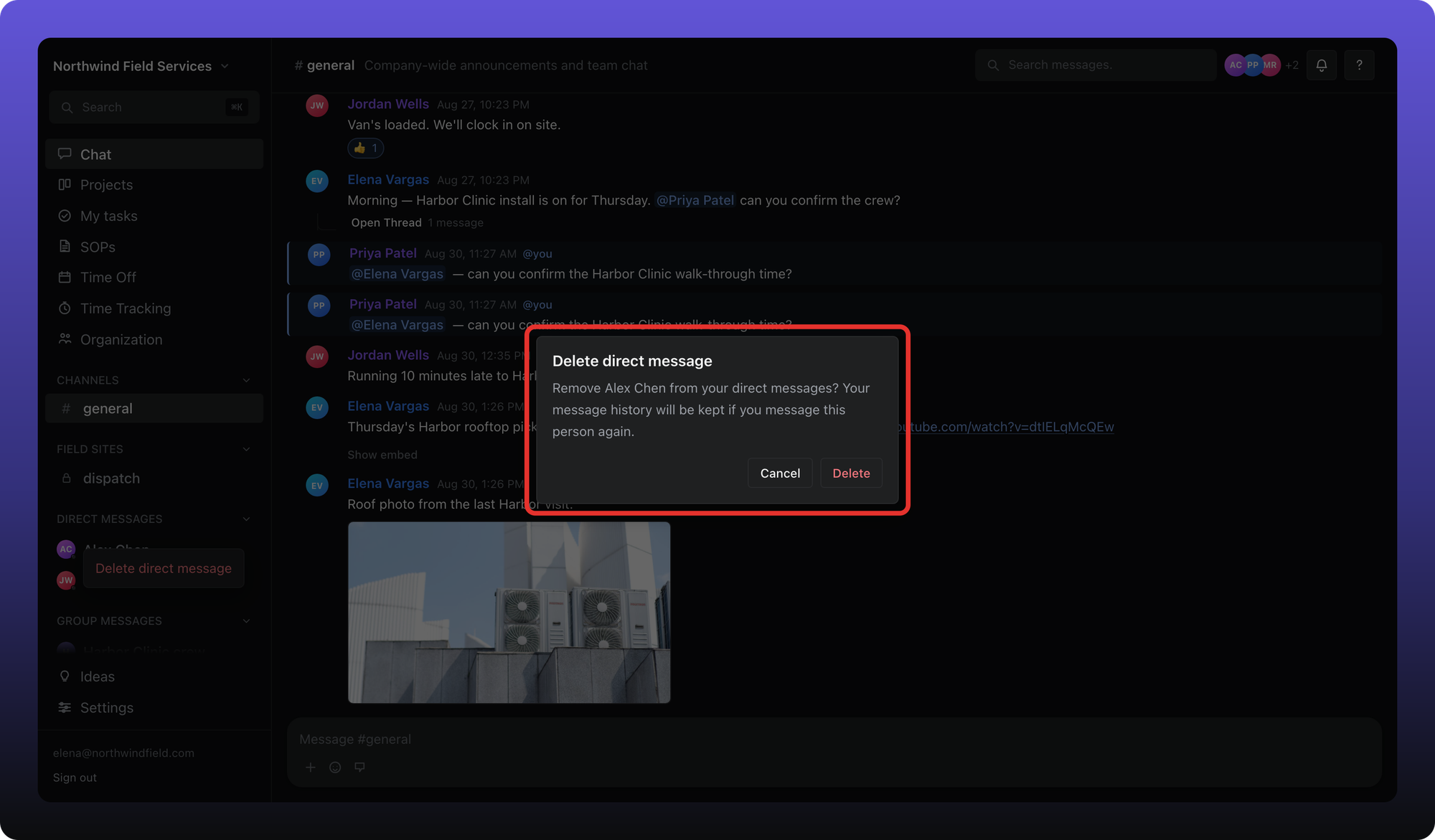
That only hides the row from your list. The history stays. Message that person again and the conversation comes back.
Start a group chat
Click Start group chat. Pick at least two other people. A group name is optional.
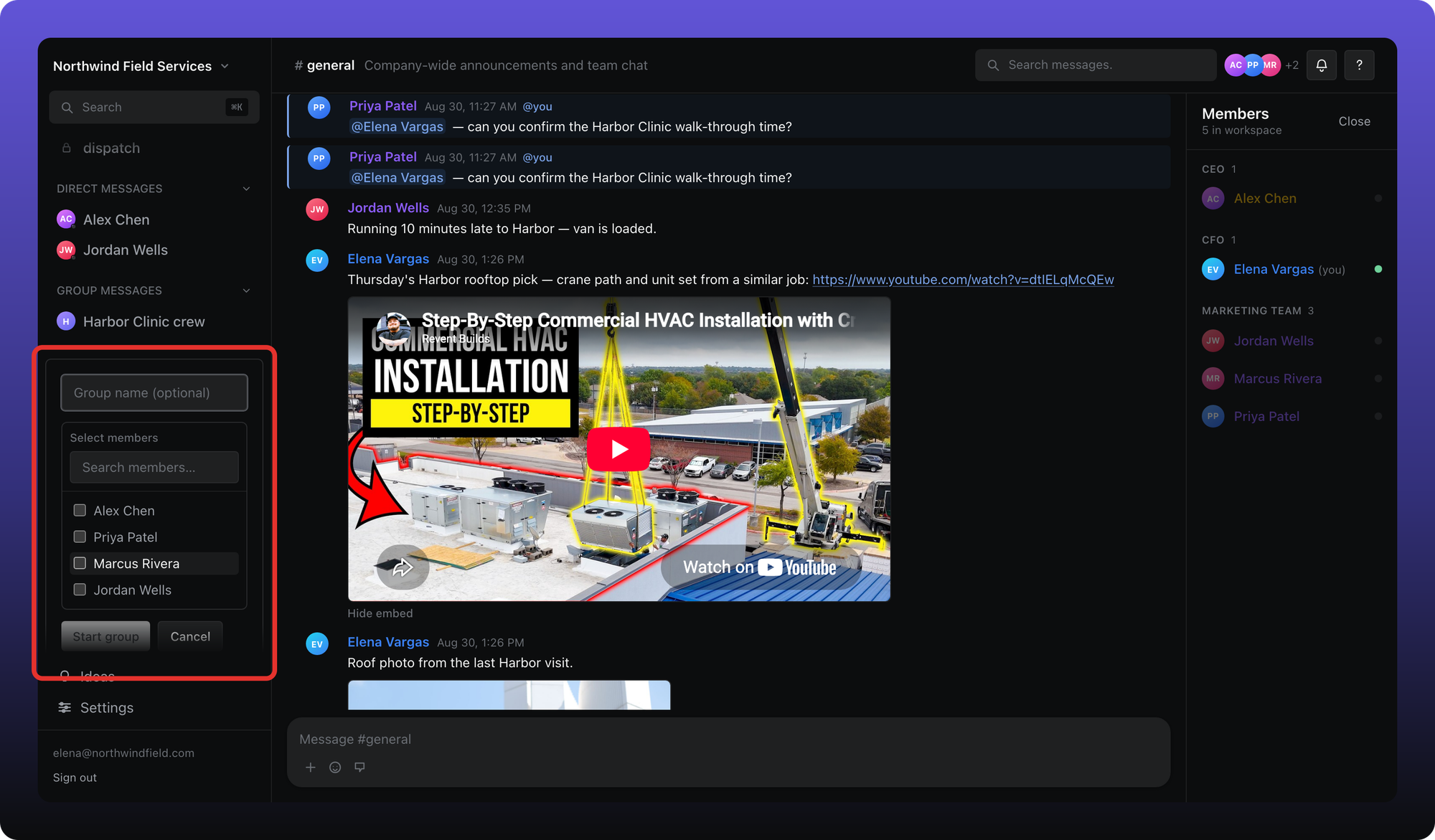
The outlined form is Group name (optional) and Select members. Click Start group when at least two other people are checked.
The group then appears under GROUP MESSAGES.
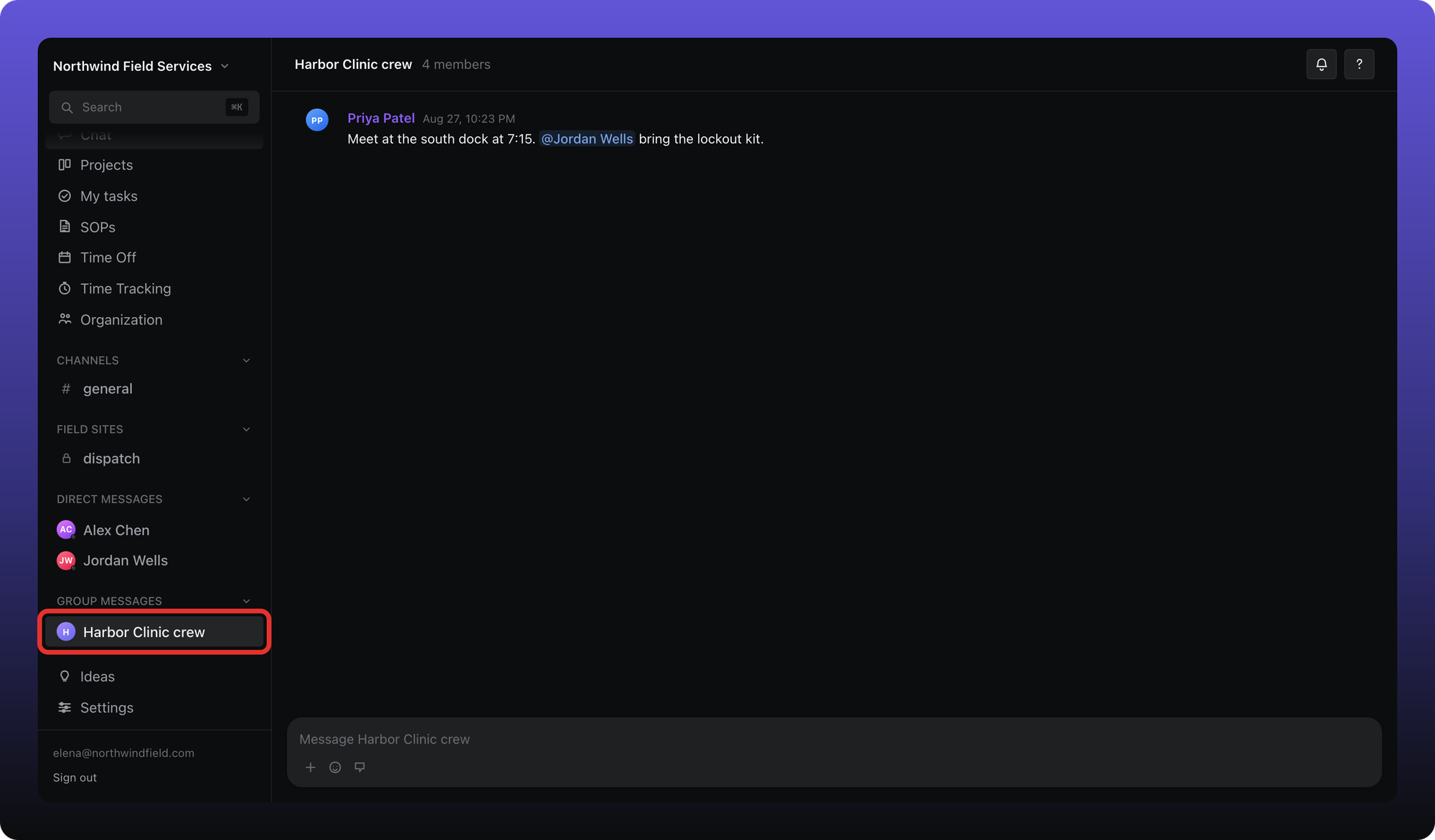
Rename, hide, or leave a group
Right-click the group in the sidebar.
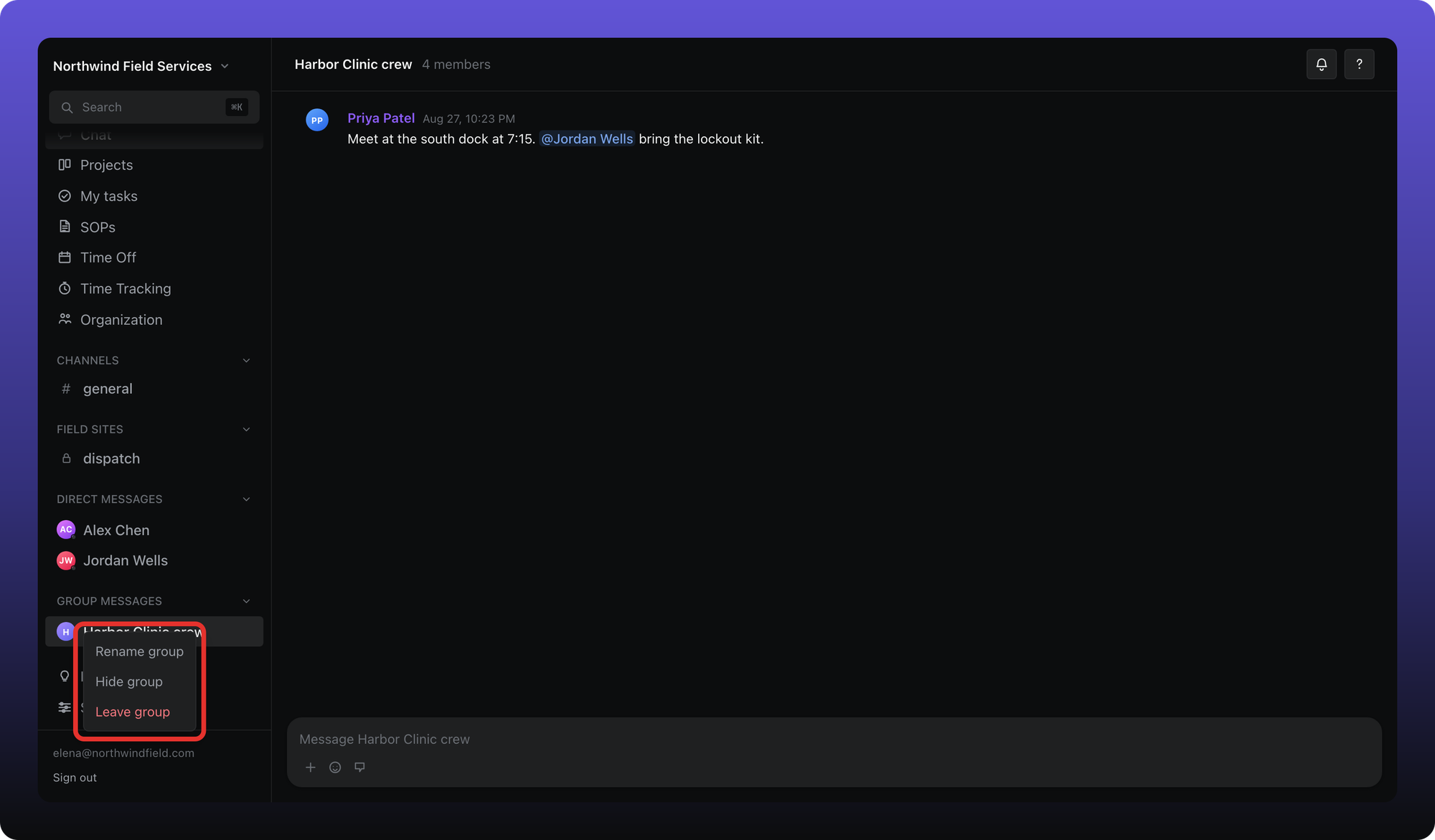
- Rename group — changes the name for everyone in the group.
- Hide group — removes it from your list. A new message can bring it back.
- Leave group — you leave. The group stays for everyone else.
Related
Channels are separate from DMs and groups. See Chat overview and Create and organize channels.
Was this helpful?
Still need help? Ask the team