Send messages, mentions, and files
For everyone. Mentions, attachments, embeds, reactions, and edits.
Last updated About 1 month ago
For everyone.
Type in the box at the bottom of a channel or conversation and press Enter to send. Shift+Enter starts a new line.
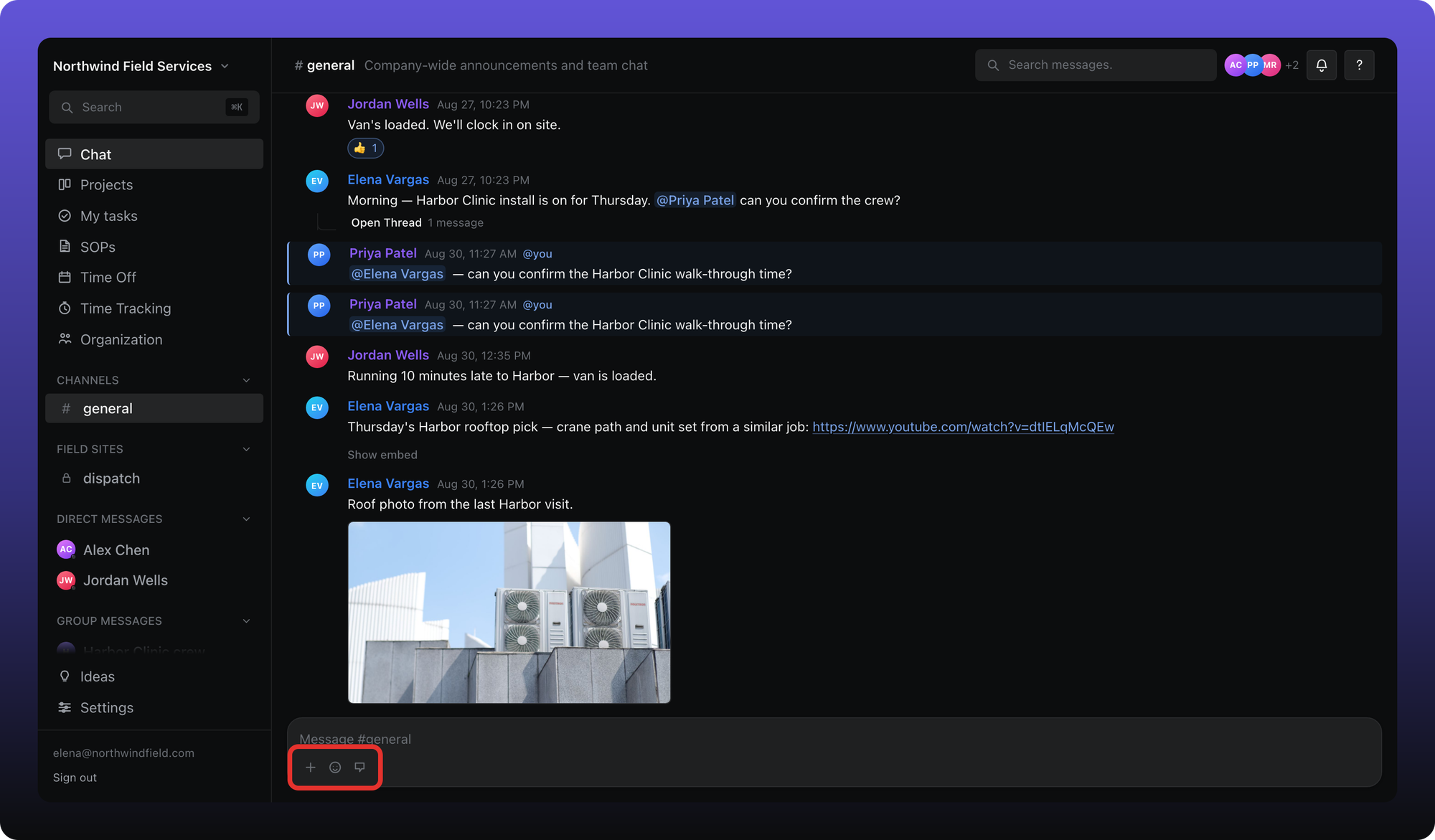
- Attach file — plus button. Files can be up to 2 MB.
- Add emoji — inserts into the message.
- Mention someone — opens the mention menu. You can also type @.
Mentions
Type @ to mention a person. The same menu also lists tasks, projects, SOPs, and folders — those become links in the message.
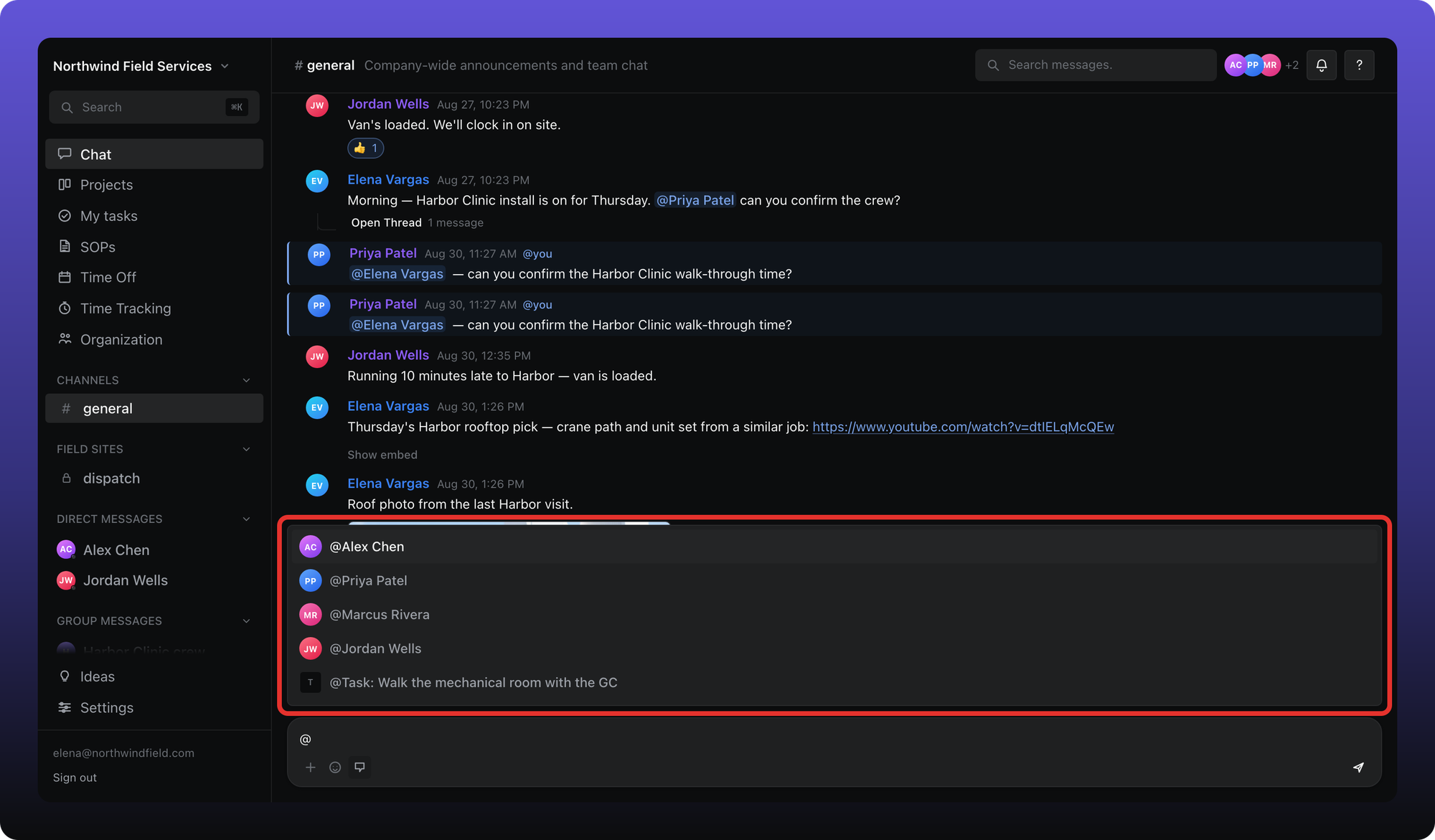
The outlined menu is the mention list. Click a row or press Enter to insert it.
A mention notifies that person in the app only. It does not send email. Thread replies are different — those can email. See Threads.
Files
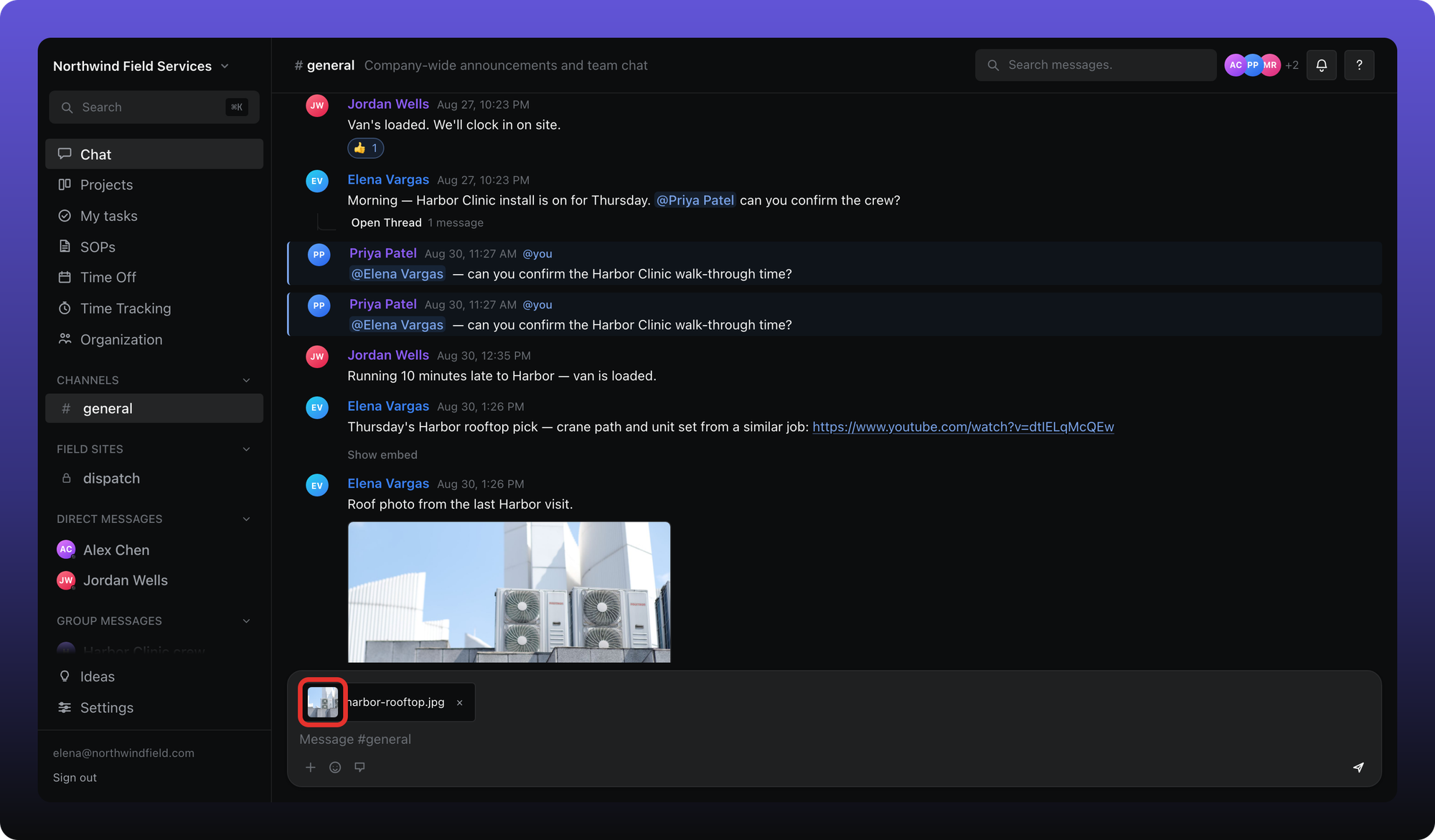
Click Attach file, pick a file under 2 MB, then send. Images show a preview in the composer before you send.
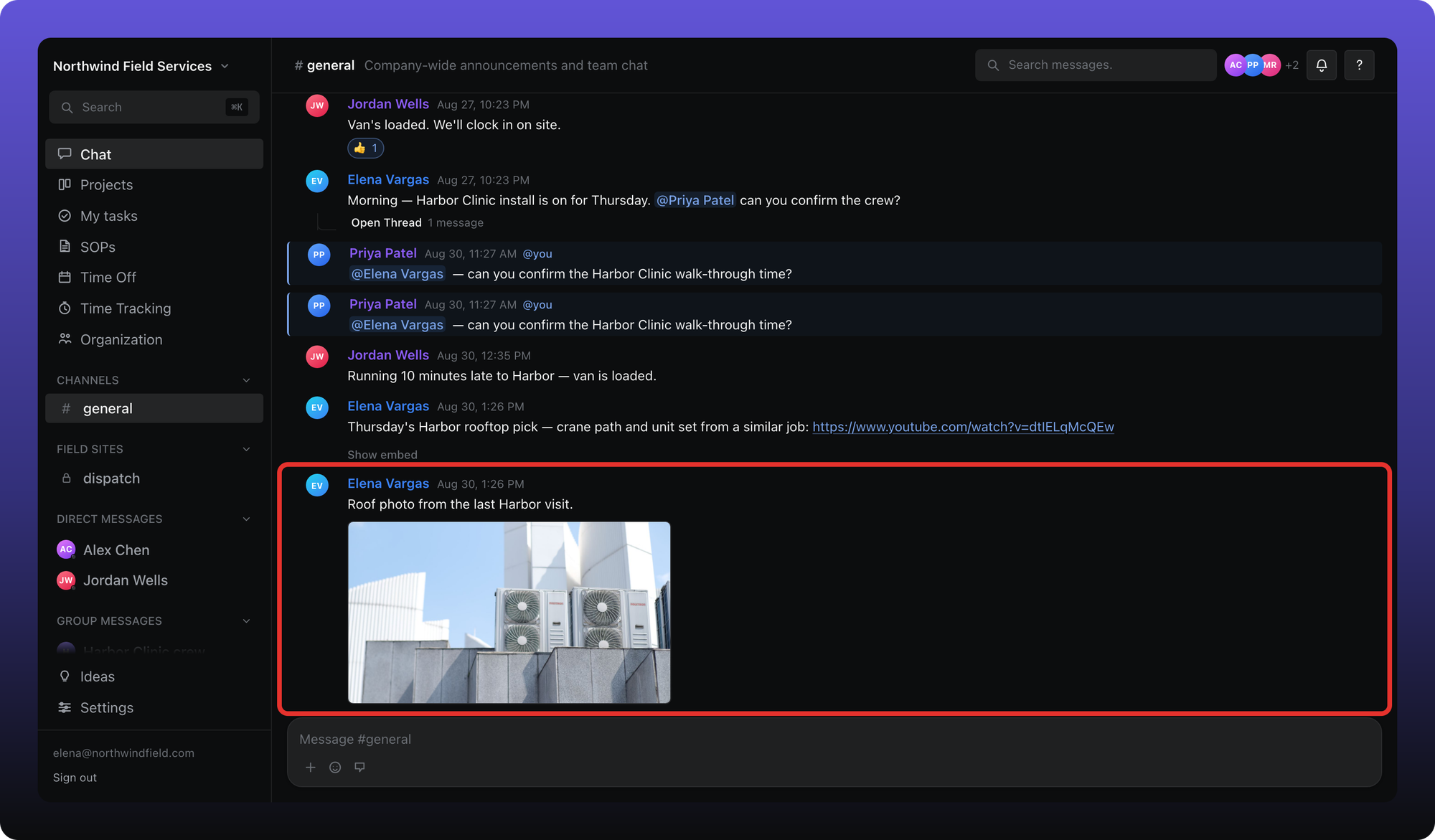
After you send, the file sits in the message.
Video links
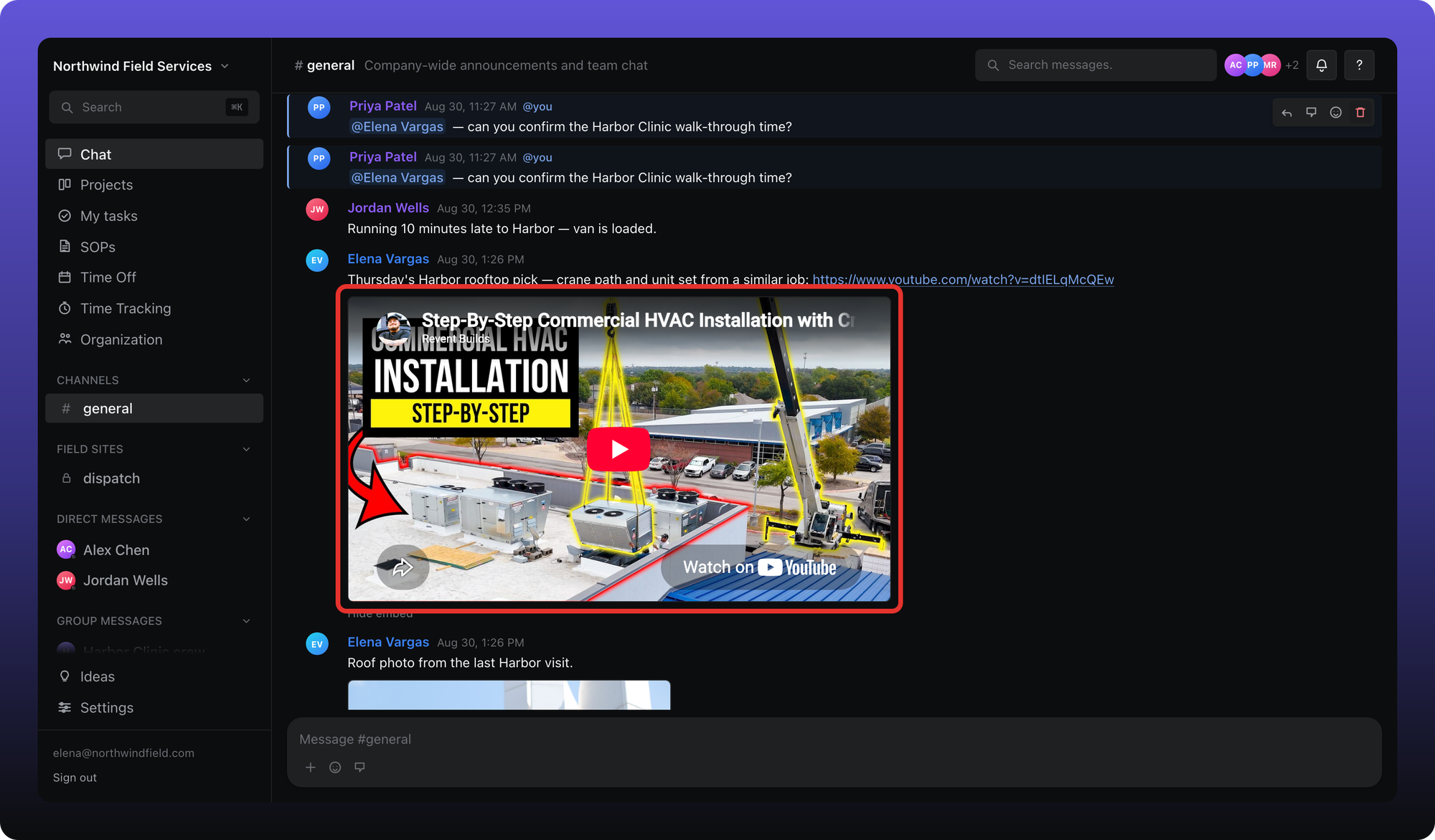
Paste a YouTube, Loom, Vimeo, or Rumble link and it embeds in the message. Use Hide embed or Show embed on that message if you want the player out of the way.
Edit, delete, and react
Hover a message to see its toolbar.
You can Edit your own messages. Edited messages show (edited).
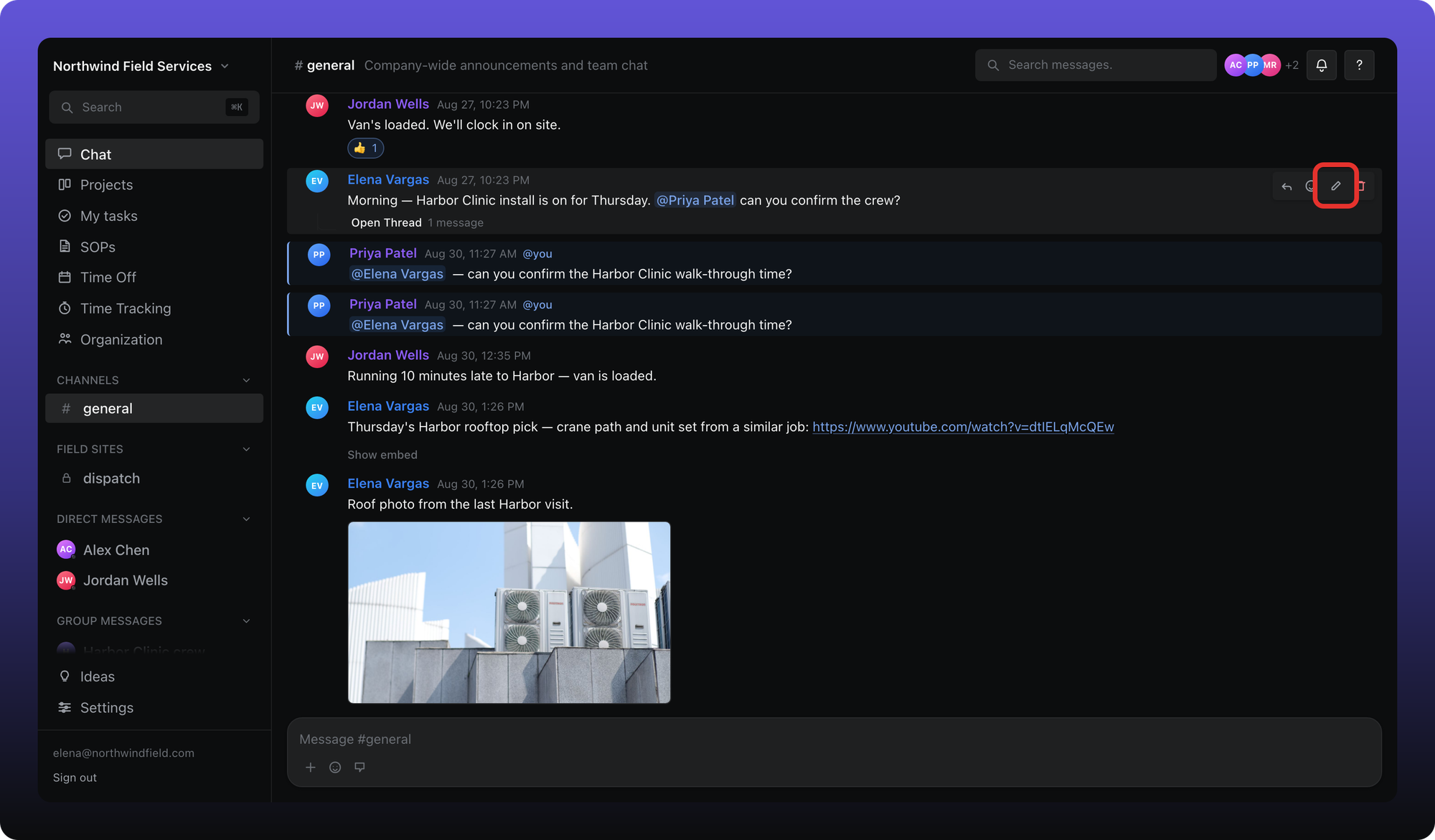
Edit — pencil. Only on messages you wrote.
Admins can Delete other people’s messages they can see. They cannot edit them. Anyone can delete their own.
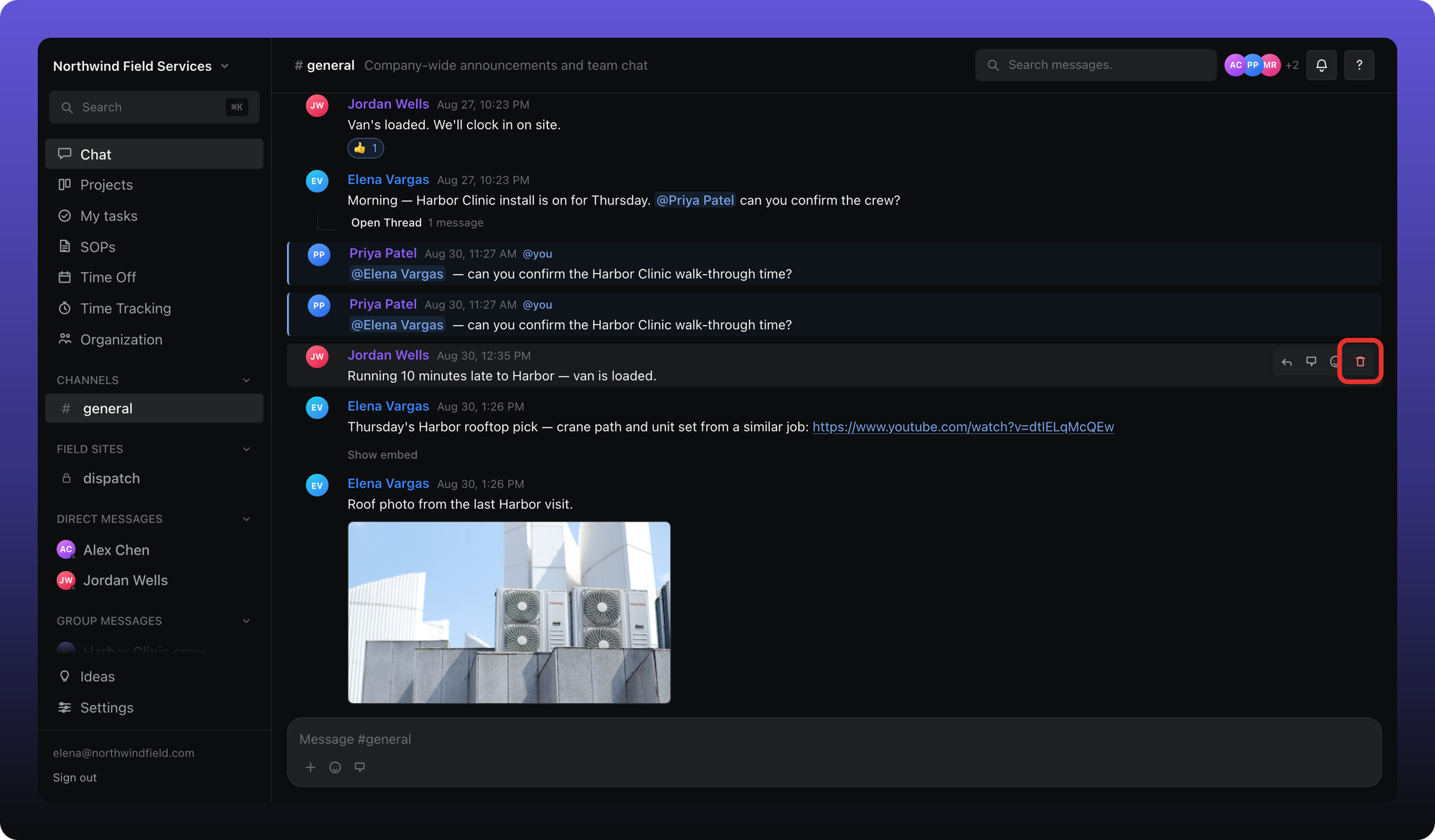
Delete — trash. Confirm to remove the message. This cannot be undone.
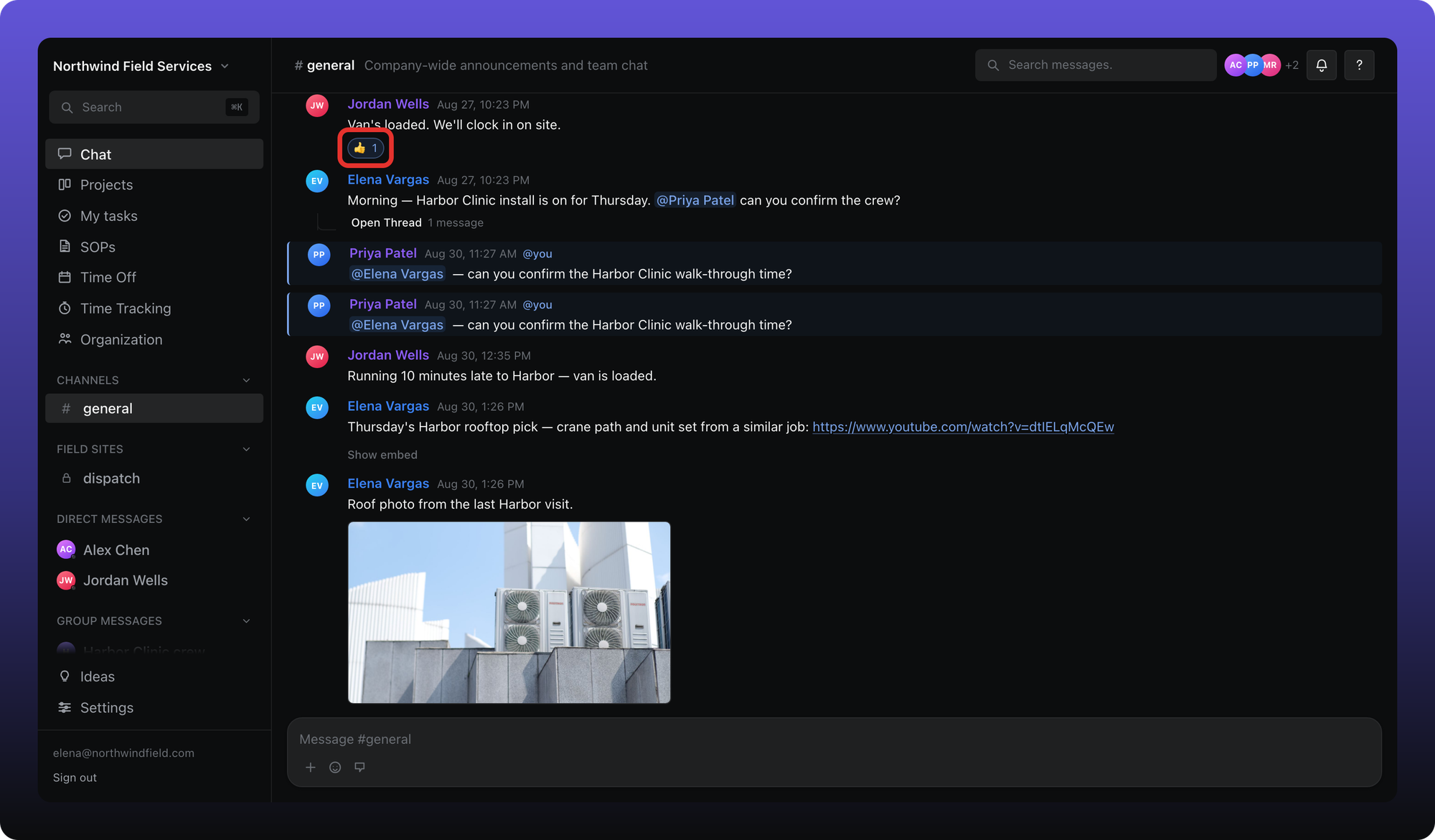
Use Add reaction on the toolbar, or click an existing reaction to add yours.
Was this helpful?
Still need help? Ask the team