Invite a teammate
For managers and admins. Send an email invite and set employment details.
Last updated About 2 months ago
For managers and admins.
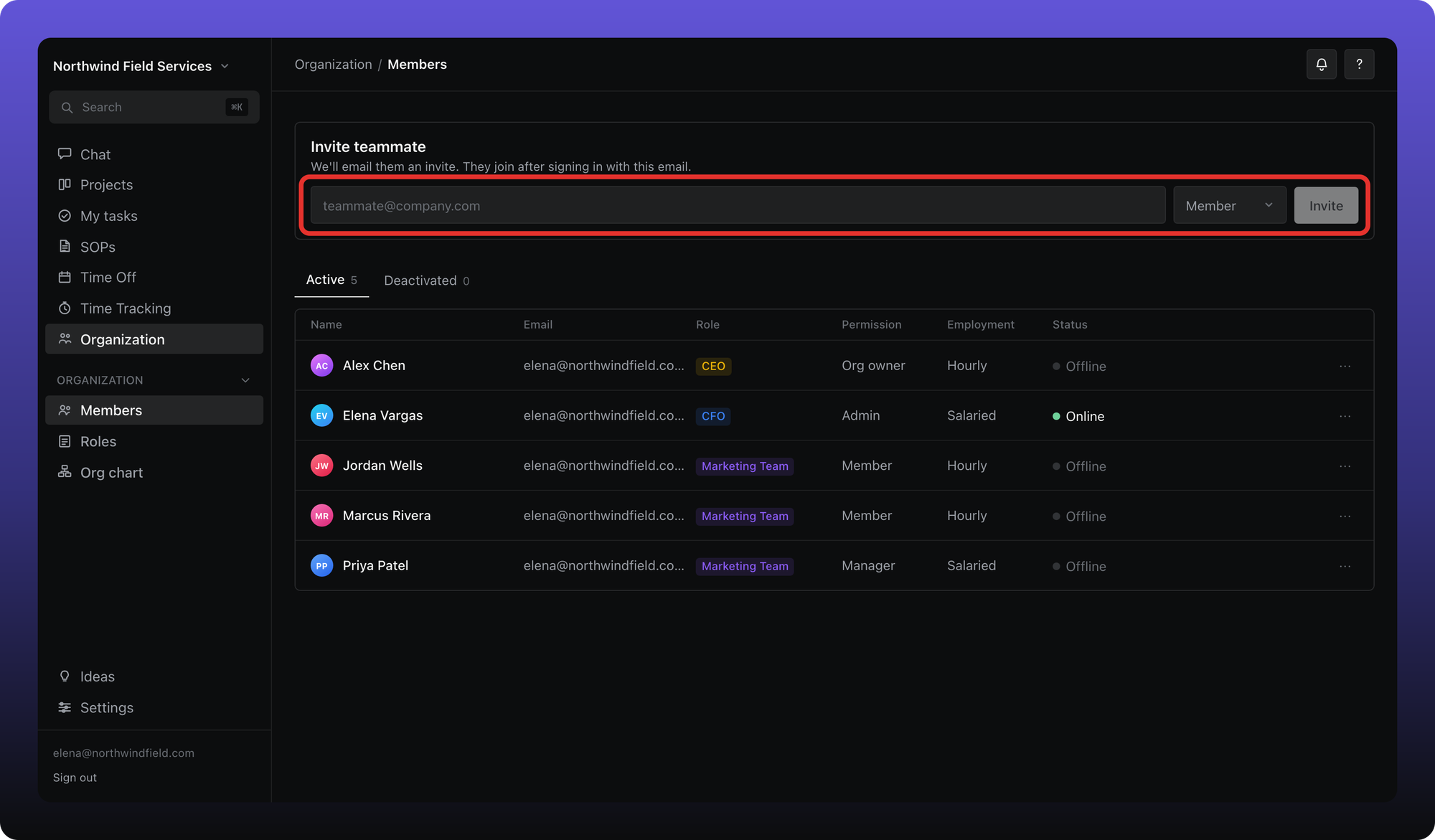
Managers and admins can invite new teammates from the Members tab. Aiome sends an email; the person joins after signing in with that address.
Send an invite
- Click Organization, then Members.
- Enter their email in Invite teammate.
- Choose an app permission — Member, Manager, or Admin (managers can only pick Member or Manager).
- Click Invite.
Set employment details
A second step collects details that apply when they join:
- Employment type — hourly or salaried (required).
- Employment date — used for leave waiting periods and proration.
- Org role — optional job title.
- Org chart — on Business, include them on the chart and set who they report to.
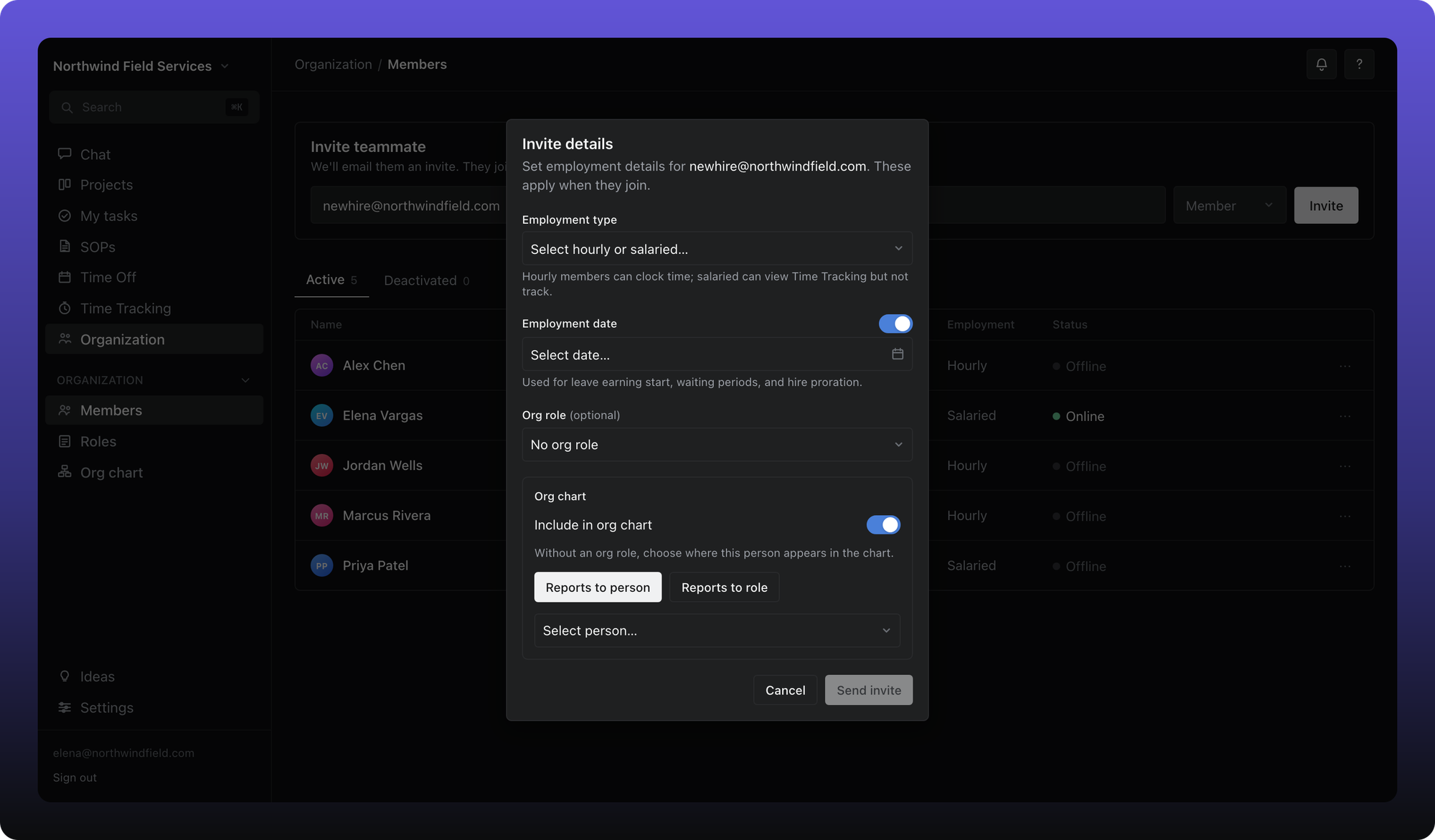
Click Send invite. The new row shows as Pending invite until they sign in.
Resend or cancel
On a pending invite row, click Resend to send the email again, or Cancel to revoke the invitation.
Plan limits
Free includes three active seats (members plus pending invites). At the three-seat cap, inviting someone opens the upgrade prompt. To add someone without upgrading, deactivate a seat first, or reactivate a deactivated member through the replace dialog. See I hit a Free plan limit, What's on Free vs Business, and Free vs Business (Billing).
On Business, seats sync to your subscription when you invite or deactivate people. There is no separate add-seats step on Billing.
Was this helpful?
Still need help? Ask the team