Clock in, out, and breaks
For hourly members. Header buttons, breaks, and the day timeline.
Last updated About 2 months ago
For hourly members.
Business plan. Time tracking is available on the paid Business plan only. Free workspaces do not show Time Tracking in the sidebar.
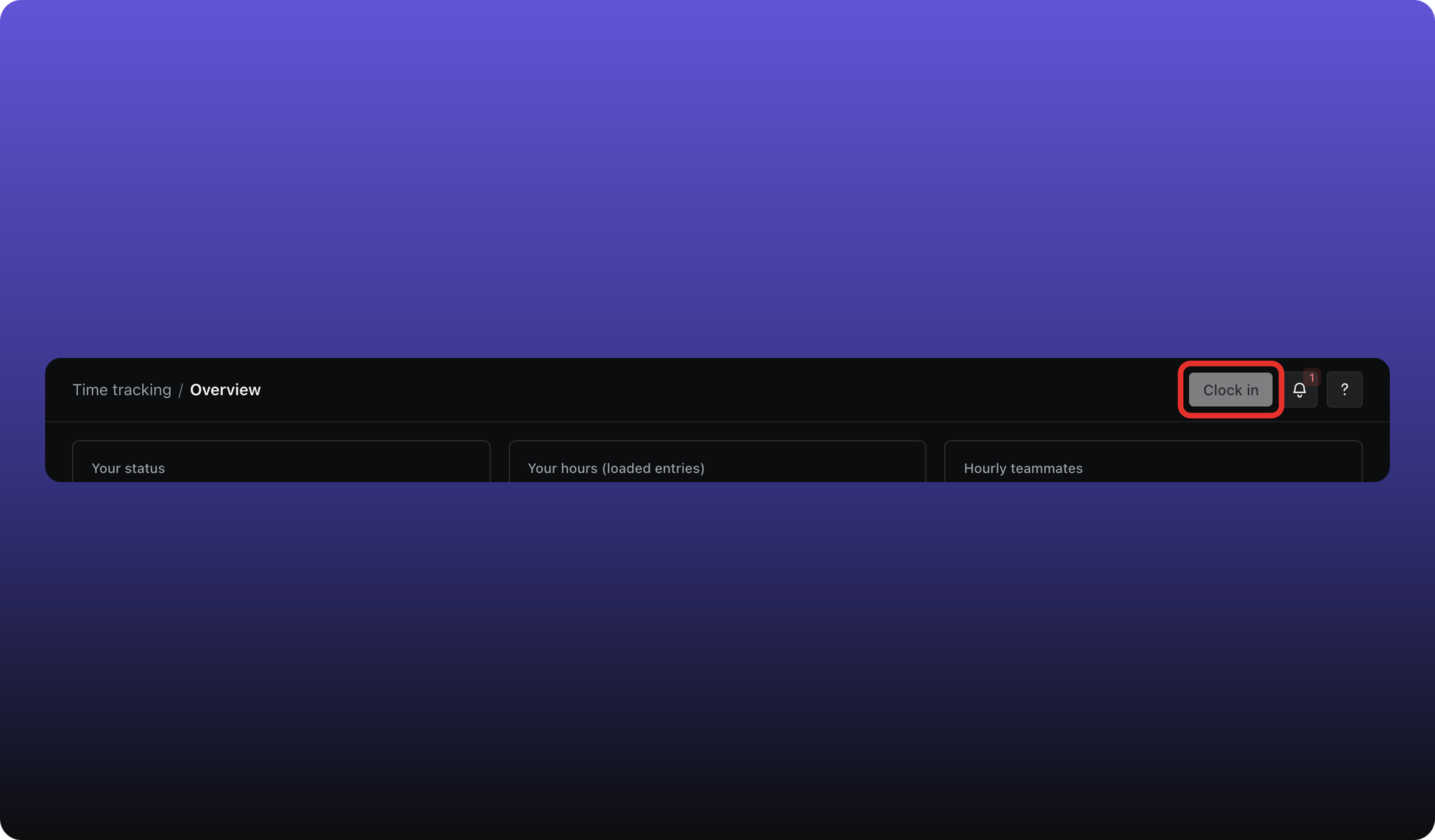
When your employment type is Hourly, use the header buttons or Time tracking to record when you start and stop work.
Clock in
- Click Clock in in the top bar (or open Time Tracking first).
- A live timer runs until you clock out.
Clock out and breaks
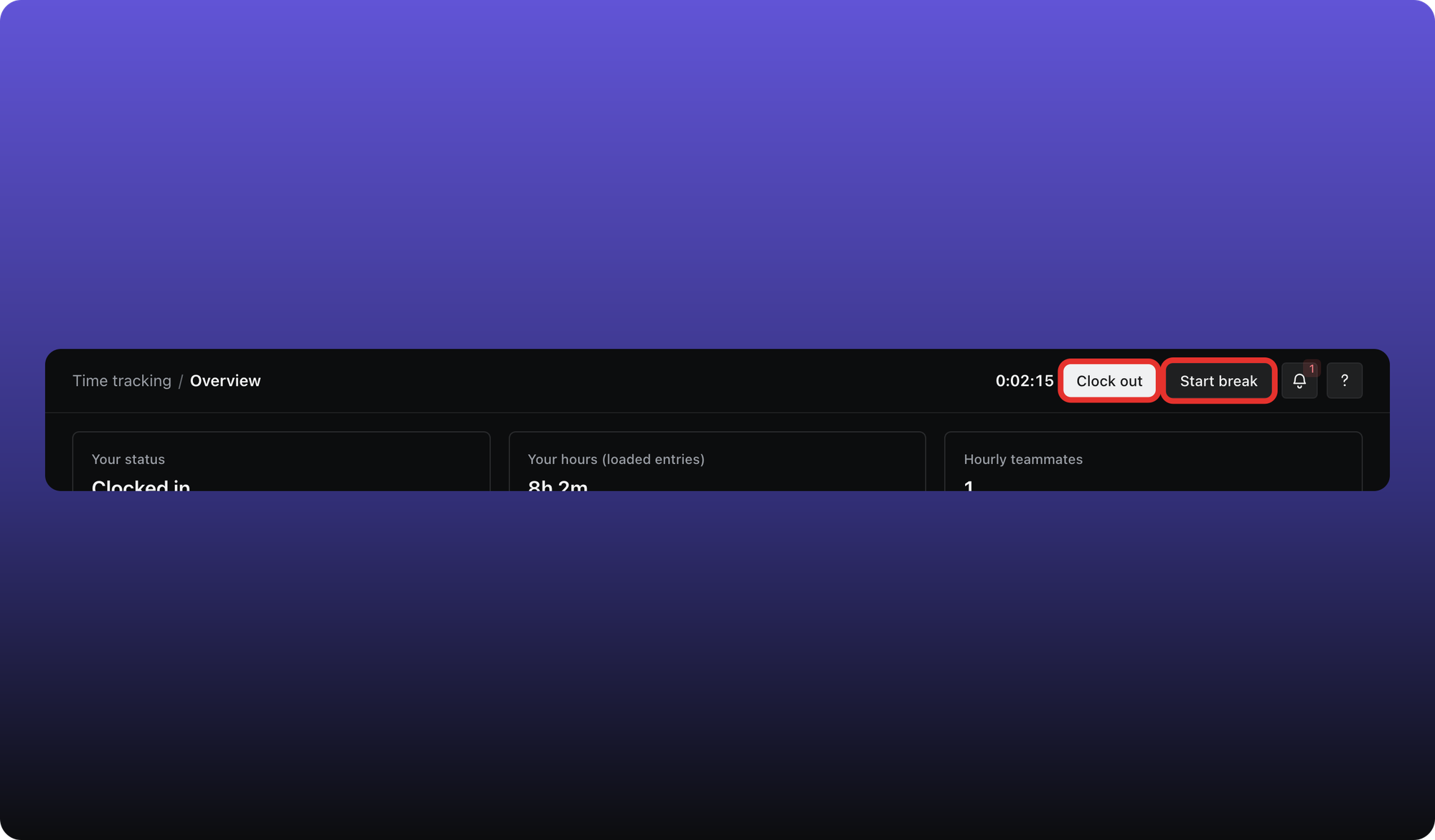
While a shift is open, the header shows your running timer plus:
- Clock out — ends the shift.
- Start break / End break — pauses work time without ending the shift. Break time is tracked separately from worked time.
Day timeline
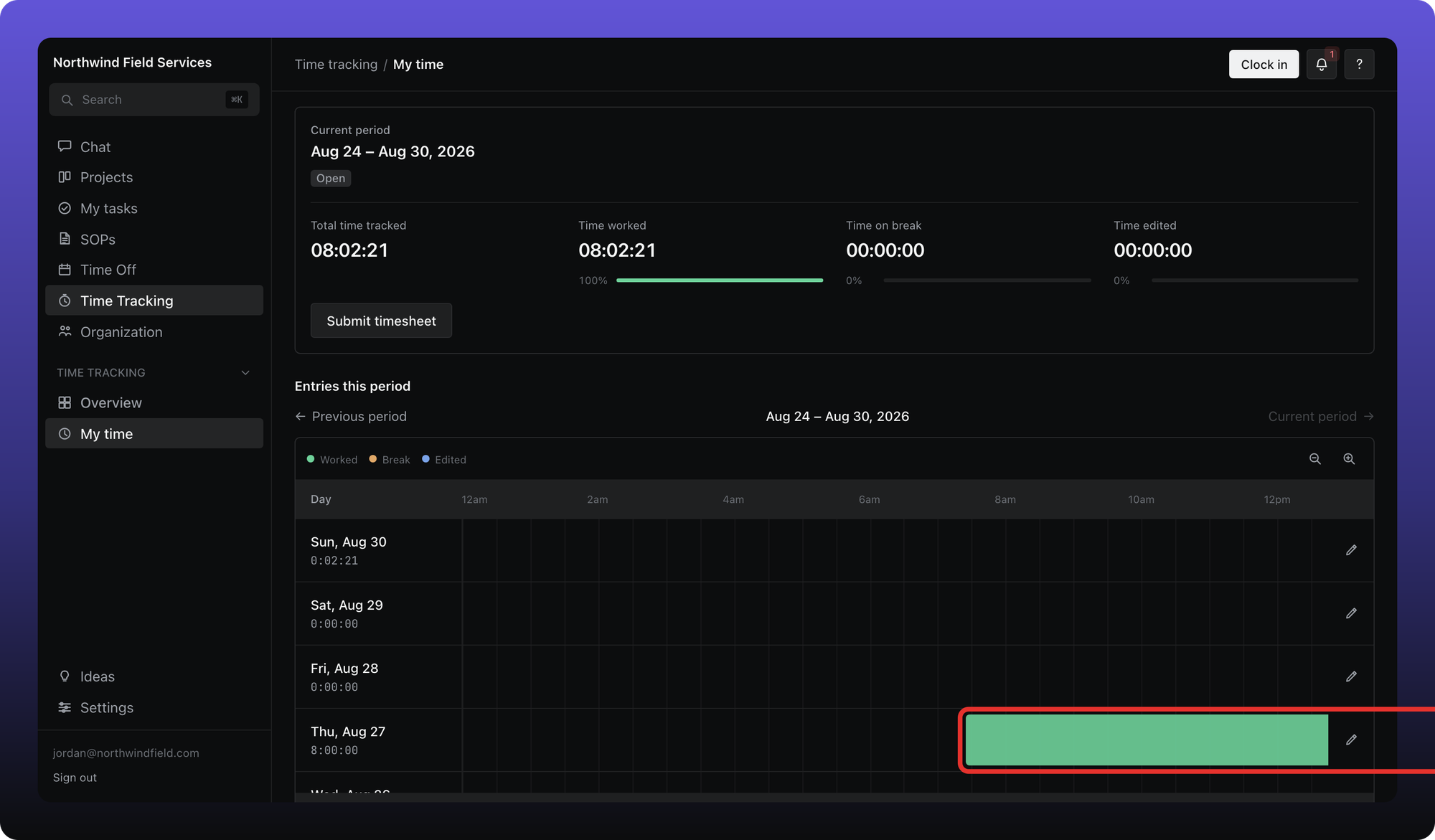
Open Time Tracking, then My time, to see each day in the current pay period as a timeline of shifts and breaks.
Salaried members
Salaried teammates can open Time tracking but the Clock in button is disabled. They can still clock out or end a break if a shift is already open — for example after their employment type changed mid-shift. Admins set hourly vs salaried in member settings.
Was this helpful?
Still need help? Ask the team