Request time off
For everyone on the Business plan. Submit a leave request with type, dates, and an optional note.
Last updated About 2 months ago
Business plan only. Free workspaces do not show Time Off in the sidebar.
Everyone · Business plan
Click Request time off (top bar on any Time Off screen) to open the request form.
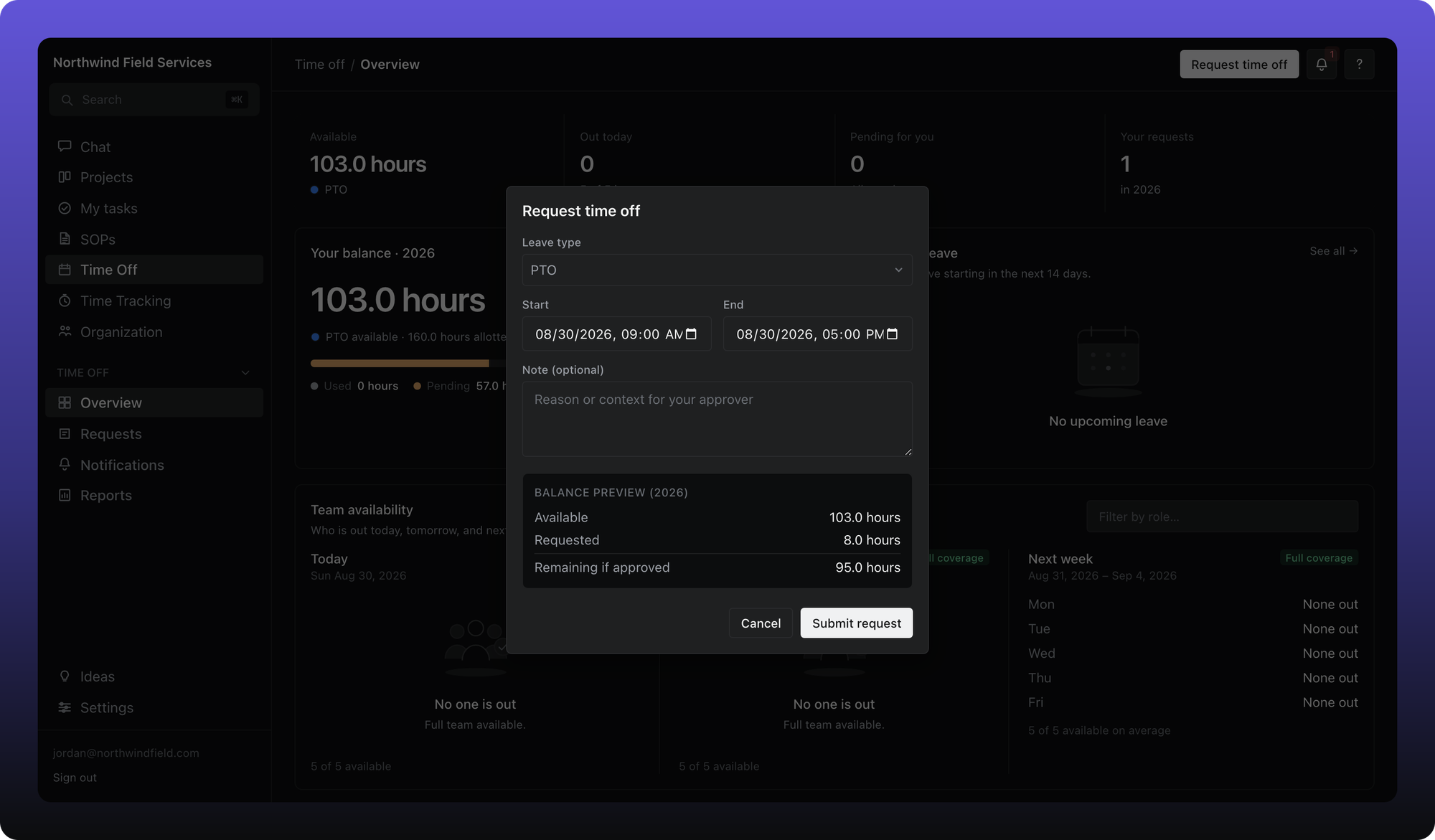
Choose a leave type (for example PTO or Sick Leave). Only policies that apply to you and are active appear.
Set a start and end date and time. Each policy tracks balances in hours or days — the dialog shows the unit and how much balance you have left.
Add an optional note if the policy allows it (some policies require one).
Click Submit request.
Your request stays Pending until an approver acts or the policy auto-approves it. You can cancel a pending request from Requests.
Who can see your note
Leave notes are not public chat. They are visible to you, your reports-to manager on the org chart, people named as approvers on that policy, workspace admins, and the workspace owner — not every manager in the company.
Was this helpful?
Still need help? Ask the team