List, board, filters, and grouping
For everyone. List, kanban, filters, sorting, and grouping.
Last updated About 1 month ago
For everyone.
Inside a project or My tasks, switch between List and Kanban. Use the toolbar for filters, sorting, grouping, and which columns show in list view.
List and kanban
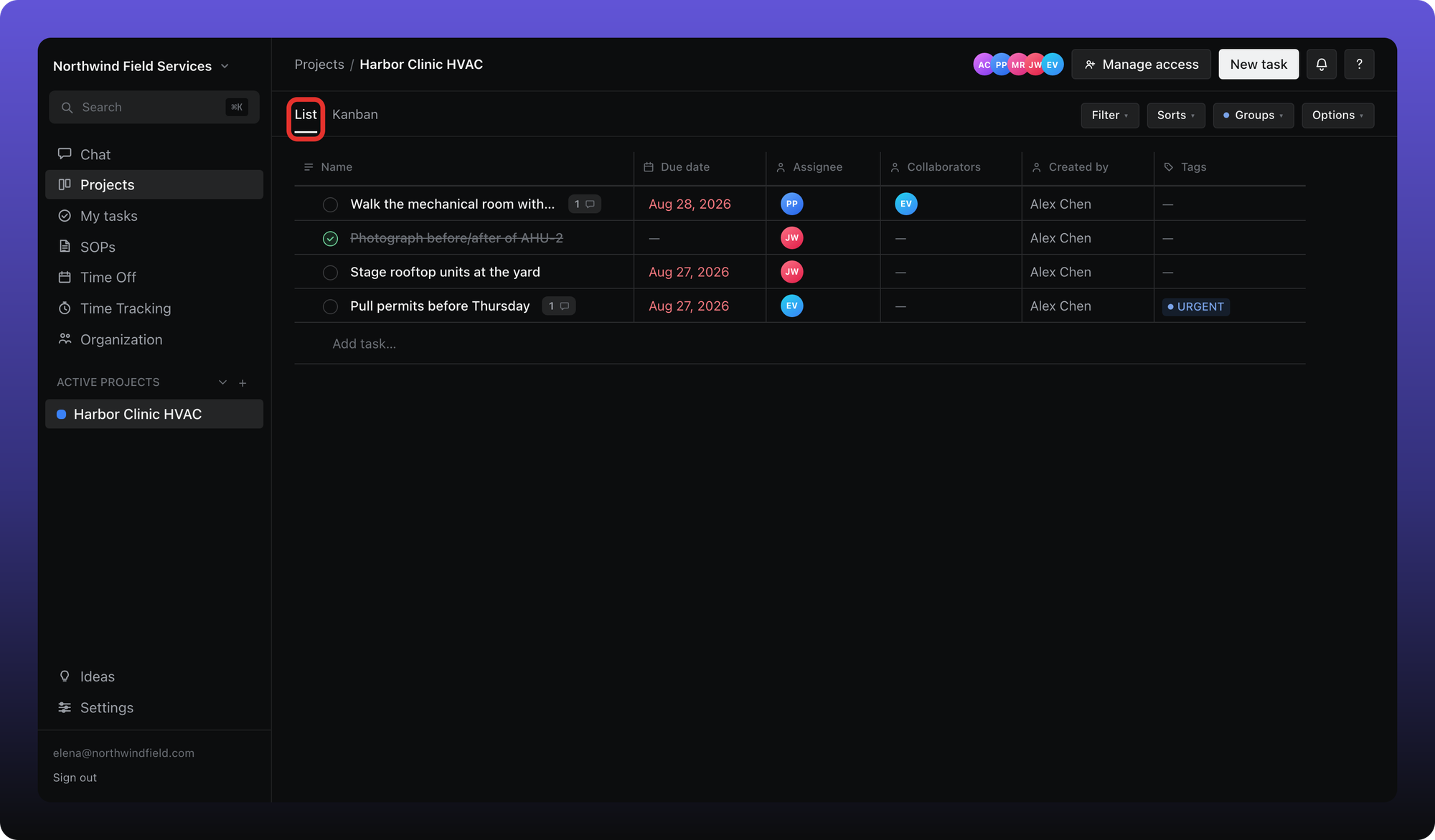
List view shows tasks in a table. Click column headers where available, or use Sorts to order by due date, status, assignee, and more.
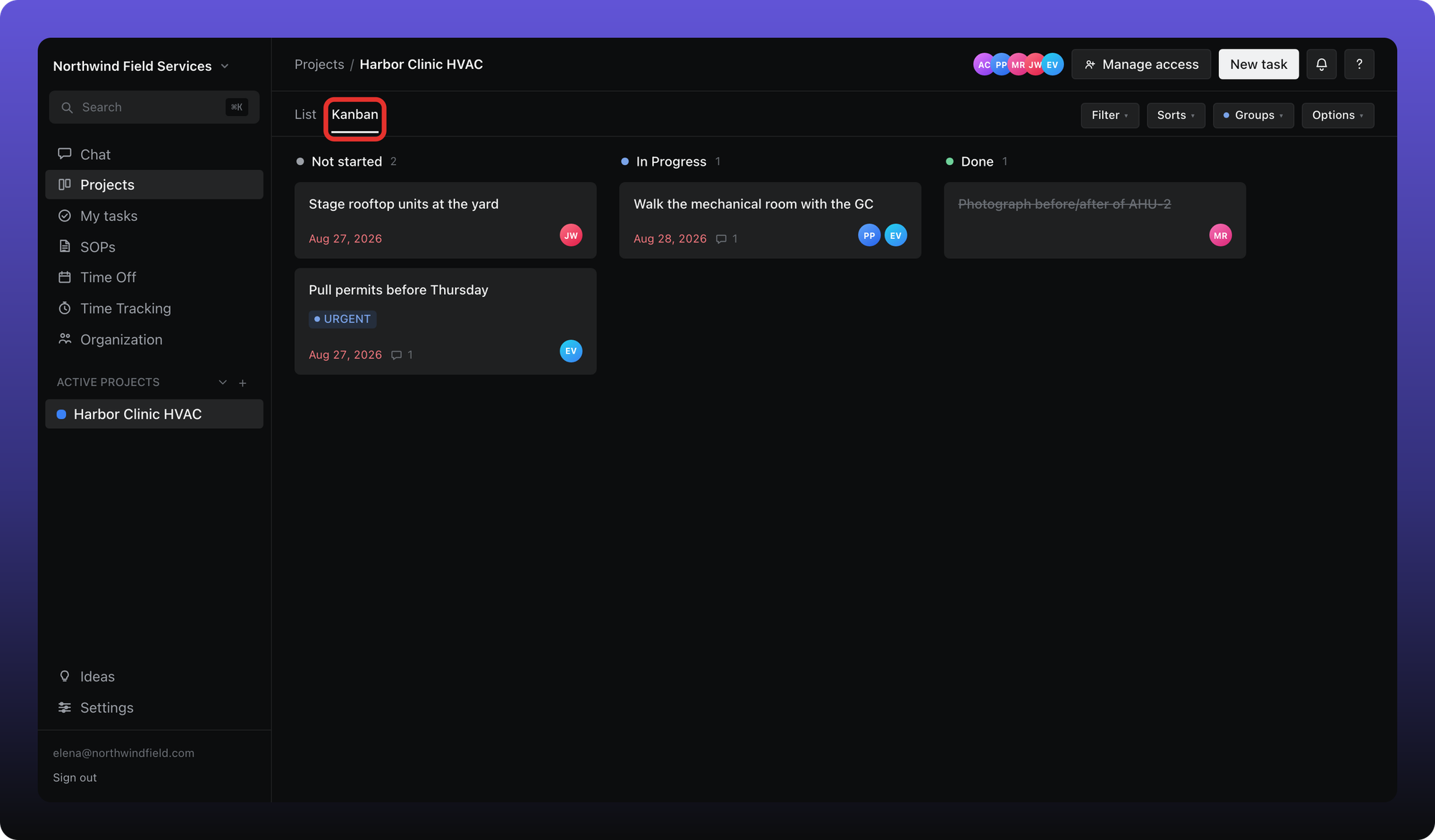
Kanban groups tasks into status columns. Drag a card to change status.
Filter and group
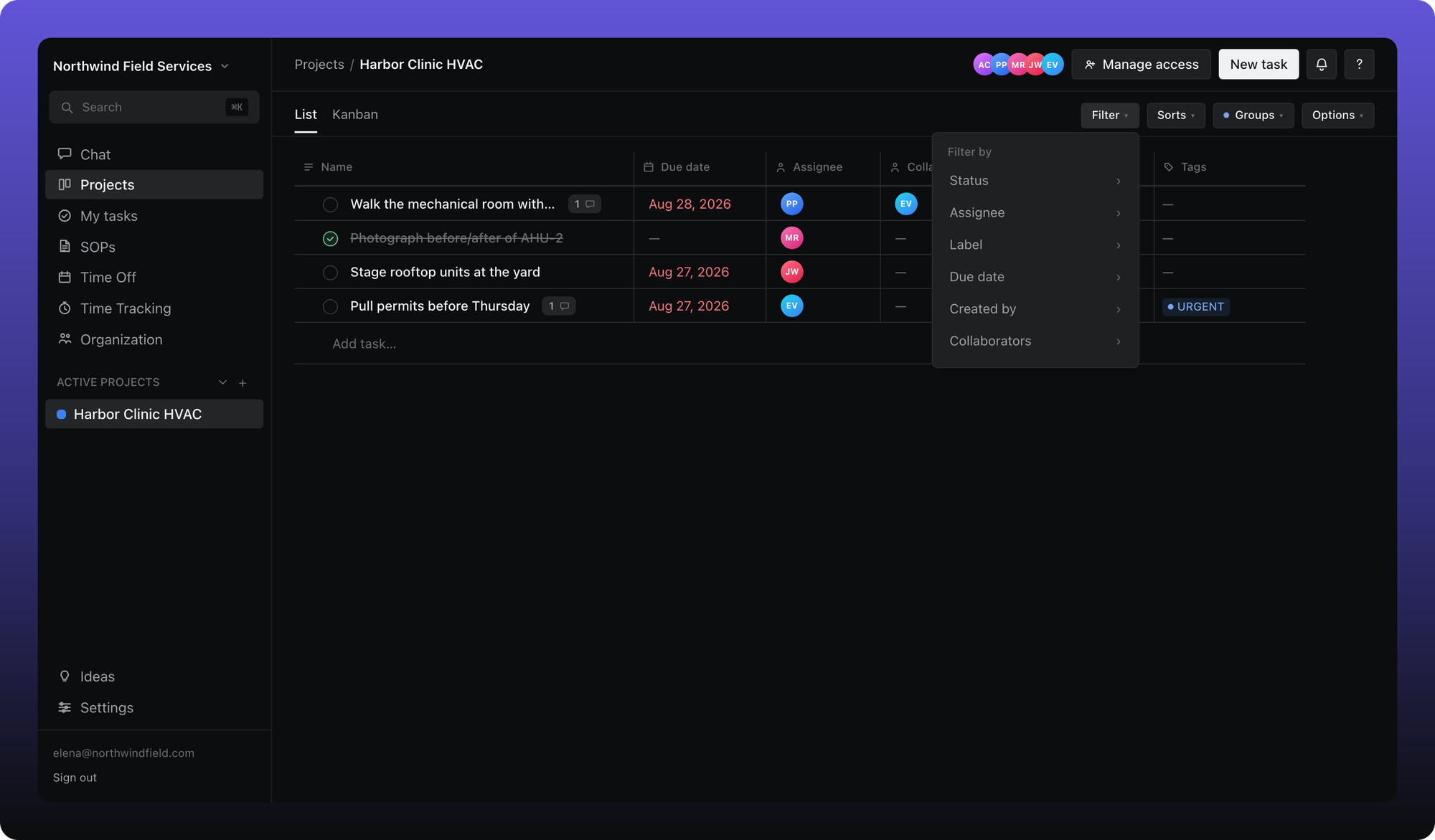
Filter narrows the view — by assignee, status, due date, labels, project (in My tasks), and other fields.
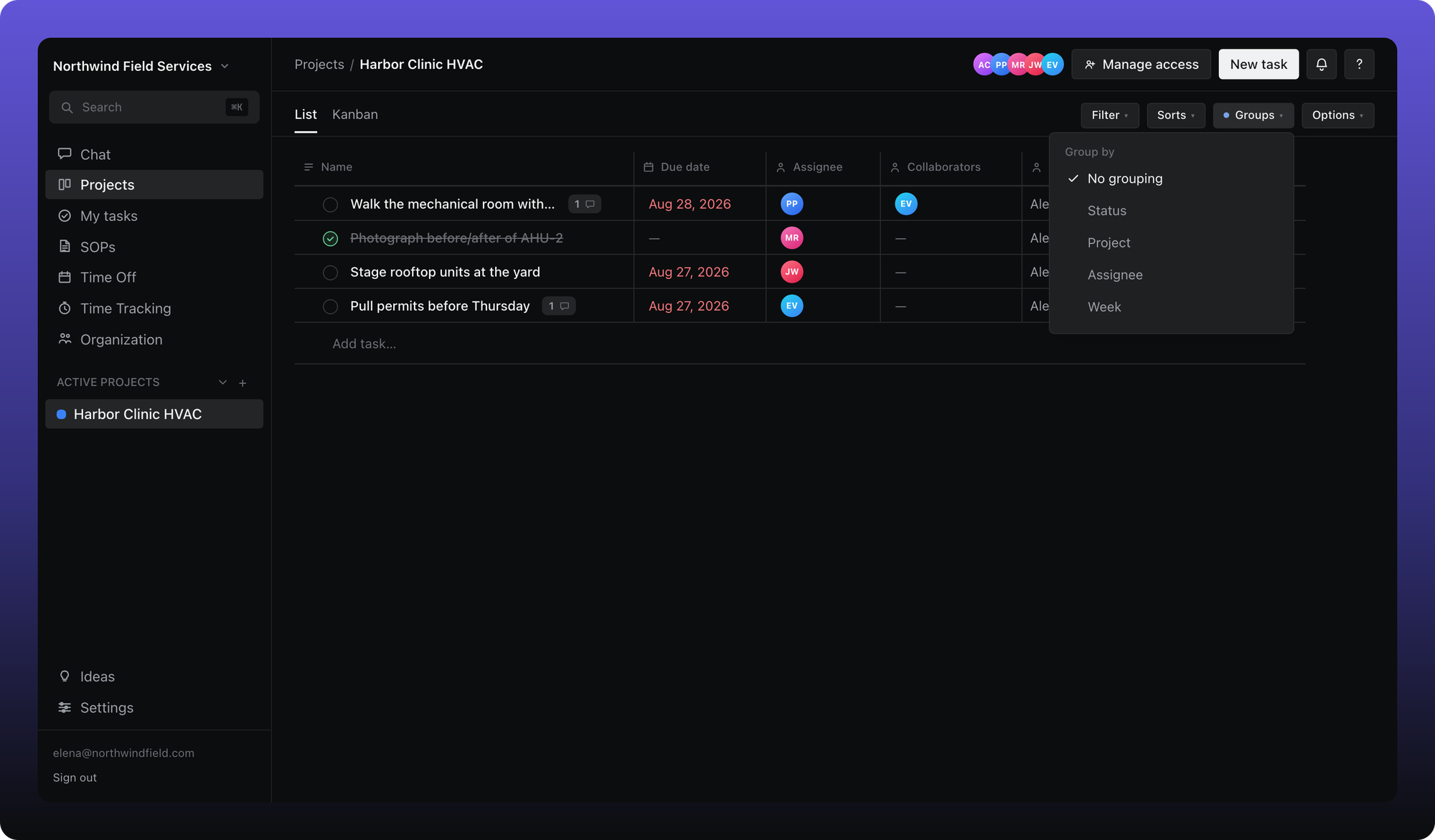
Groups clusters tasks under headings — for example by assignee or week (the week a task is due) — in list view.
Options controls which columns appear in list view.
Saved per place
View mode, filters, sorts, groups, and column choices are saved separately for My tasks and for each project. Changing them in one place does not change the others.
Was this helpful?
Still need help? Ask the team